
Chart Basics: From Selected Data to a Readable Chart
The problem
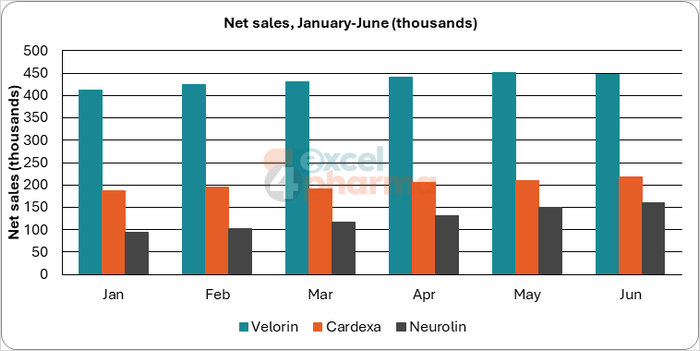
A table of twelve months and three products holds 36 numbers. The question the table is meant to answer, which product is growing and how fast, is hidden in them. A chart answers it in a second, but only if it is built on the right data and stripped of what does not help. Most charts that fail do so for one of three reasons: the wrong cells were selected, the default chart type was accepted without a thought, or every element Excel offers was left switched on.
This article covers the mechanics: how to create a chart, what its parts are, the tools that speed up the work and the ones that fix common problems. The next article is about choosing the type. The examples use G07_Chart_Basics.xlsx, with illustrative net sales in thousands for three fictional products.
How a chart is built
A chart is an object linked to cells (the article on shapes and images explains what an object is), and it redraws itself whenever the data change. It has a few parts worth naming, because every menu in Excel refers to them:
- the chart area, the whole frame, and the plot area, the rectangle that holds the data;
- the series, one for each column or row you plotted, each with a name that appears in the legend;
- the categories, the labels along the horizontal axis, here the months;
- the axes, with their titles, scale and number format;
- the data labels, gridlines, legend and title, which are optional.
Two rules of selection save most of the trouble. Select the data first, with the header row and the first column included: Excel reads the first row as series names and the first column as categories. And keep the block contiguous and free of blank rows and total rows, which would otherwise become a series of their own. On the Monthly Sales sheet, the block A3:D9 gives three series over six months; the total in column E is left out on purpose.
Creating the chart
With the data selected, go to Insert > Recommended Charts. The dialog shows previews of types that suit the shape of the data, and its All Charts tab lists every type Excel offers. If you already know what you want, choose directly from the Charts group. Microsoft also documents a shortcut: pressing Alt+F1 creates a chart immediately from the selection, with the warning that the result may not be the best chart for the data.
Two helpers appear when the data are selected. The Quick Analysis button at the bottom right of the selection opens a small gallery in which the charts preview as you move the mouse over them; it also offers sparklines and conditional formatting, which are covered in other articles. The Recommended Charts suggestions are sensible rather than clever: for a table of months and products they will offer a clustered column or a line, and an experienced user will usually know better. They are best seen as a starting point.
The three buttons and the two tabs
When a chart is selected, three buttons appear at its upper right: Chart Elements (the plus sign), Chart Styles (the brush) and Chart Filters (the funnel). Two contextual tabs also open on the ribbon, Chart Design and Format.
Chart Elements adds or removes titles, axis titles, data labels, gridlines, legend and a trendline. A good habit is to start with the fewest elements that make the chart readable and add only what answers a question. Gridlines are rarely needed when data labels are present, and a legend is redundant when there is a single series and a title. Every element left on that carries no information is a small tax on the reader.
Chart Styles applies a ready-made look and a color set. Use it as a shortcut and then correct the colors: a chart in the house palette looks like part of a document.
Chart Filters hides a series or a category temporarily without touching the data. With the chart on Monthly Sales selected, clear Cardexa in the filter: the data stay in the sheet and in the selection, and the chart simply stops drawing them. Tick it again and it returns. It is the safest way to show a subset in a presentation, because no data are deleted and nothing can be forgotten.
On the Chart Design tab, Select Data opens the source of the chart, where series are added, removed or re-pointed, and Switch Row/Column swaps what is plotted as series and what as categories. On the example the swap changes three series over six months into six series over three products: the data are identical, but the question the chart answers is different. Try both; the one that compares what you want to compare side by side is the right one. The Format tab, finally, formats the selected part of the chart with the same fill, line and effect options used for any shape.
Labels that read from cells
A data label normally shows the value, the category or the series name. Since recent versions it can also show text taken from cells. On the Linked Labels sheet, column C builds a label for each product with a formula:
=A4&": "&TEXT(B4,"#,##0")&" ("&TEXT(B4/SUM($B$4:$B$8),"0%")&")"
In the chart, add data labels, open Format Data Labels > Label Options and select Value From Cells, pointing to C4:C8. The labels now show something like Velorin: 5,494 (44%) and update with the data. The same technique labels the bubbles of a bubble chart, which was hard to do in the past. Labels are graphical elements like any other: they can have a fill and a shape, including callouts, though a plain label is usually the better choice.

A trendline you can verify
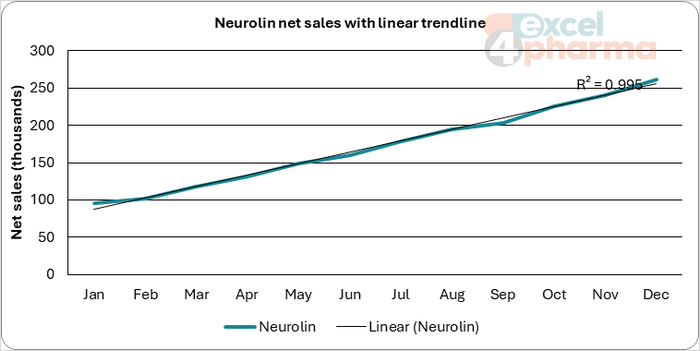
A trendline is a line fitted to a series. Select the chart, then Chart Design > Add Chart Element > Trendline, and choose among Linear, Exponential, Linear Forecast and Moving Average. In the Trendline sheet the Neurolin series carries a linear trendline with R-squared displayed on the chart.
The point of the sheet is the check: cell E4 calculates the slope with SLOPE, about 15.2 thousand per month, and E5 the R-squared with RSQ, about 0.995, which is the number the chart shows. Never rely on a number that exists only inside a chart. The same figures in cells can be reused, referenced and audited, and they tell the reader what the line means: here, a series growing steadily by about 15 thousand a month. An R-squared close to 1 says that a straight line fits the past well. It says nothing about the future, and a Linear Forecast of twelve months is an extrapolation, not a prediction.
Reusing and placing charts
A chart you formatted with care can be saved: right-click it and choose Save as Template, and the template appears in Insert > Recommended Charts > All Charts > Templates. To move a chart to its own sheet, use Chart Design > Move Chart. A chart sheet prints full page, which is useful for a final report, while a chart embedded next to its data is better for working.
Common mistakes
- Selecting a block that includes a total row, so the total is plotted as one more series or category.
- Accepting the default chart type and the default elements without checking what the chart says.
- Deleting data to hide a series from a presentation. Use Chart Filters instead.
- Showing a value that exists only inside the chart, such as a trendline equation, with no cells to check it.
- Starting the vertical axis of a column chart above zero, which makes small differences look large. For columns, the axis should start at zero.
- Leaving the default title, such as the series name, when a short sentence stating the message would do.
Companion file
Illustrative data only. Not a decision tool.For further reading
- Create a chart from start to finish - Microsoft Support
- Available chart types in Office - Microsoft Support