
Combo Charts, Secondary Axes and Sparklines
The problem
Net sales are measured in thousands, and the gross-to-net rate in percent. Plot both on one axis and the rate is a flat line at the bottom, indistinguishable from zero. Plot them on separate axes and both are readable, but the chart now allows the author to make the two lines look as correlated, or as unrelated, as he wishes. A secondary axis is a useful tool and one of the easiest ways to mislead, which is why it deserves its own article.
The second half is about the opposite problem: a table with six products and twelve months of data, where a chart for each product would take a page. A sparkline is a tiny chart that lives in a cell, one for each row, and shows the shape of the series at a glance. The examples are in G09_Combo_Sparklines.xlsx, with illustrative data.
Combo charts
A combo chart combines two or more chart types in one plot. Microsoft recommends it when data vary widely, or when types of data are mixed, such as price and volume, and notes that a secondary axis can make it easier to read. The typical case is columns for an amount and a line for a rate.
On the Combo sheet, A3:D15 holds twelve months of gross sales (column B, input), the gross-to-net rate (column C, input) and net sales (column D), calculated as gross sales times one minus the rate. The year closes in row 17: net sales of about 4,875 and a gross-to-net rate of 37.5% for the year.
To build the chart, select the data to plot, here the months, the net sales and the rate, then use Chart Design > Change Chart Type > Combo. Microsoft's steps are the same: choose the combo option, for example Clustered Column - Line on Secondary Axis, and tick Secondary Axis for the series that should use it, here the rate. Check that each series has the type you want in its drop-down: net sales as Clustered Column, the rate as Line.
The secondary axis: use with care
A secondary axis is a second vertical scale on the right-hand side, independent of the first. Because the two scales are independent, the relative position and slope of the lines depend on the bounds chosen for each, and Excel chooses them automatically.
The Combo sheet shows the effect with two charts of identical data. In the first, the secondary axis runs from 0% to 100%: the rate rises from 31% to 44% and the line looks gently inclined, consistent with a steady erosion of price. In the second, the axis runs from 25% to 45%: the same rise fills the whole height of the chart and the line climbs steeply to meet the top of the columns. Nothing in the data has changed. To set the bounds, right-click the secondary axis, choose Format Axis and edit Bounds.

Three habits keep a dual-axis chart honest. State in the axis titles which series belongs to which axis, and color the title like the series. Choose the bounds deliberately, not leave them to the automatic scale; for a rate, a range that starts at zero is the safest reading, and a narrower one should be a conscious decision. And do not use the crossing of the lines as a message: where a line crosses the columns depends only on the two scales. If the question is whether two measures are related, a scatter plot or a correlation figure answers it, while a combo chart answers a simpler question: how do two measures of different size behave over the same months.
A final test, offered as opinion with moderate confidence: if two small charts, one above the other and sharing the months, say the same thing, they are usually clearer than one chart with two axes.
Sparklines
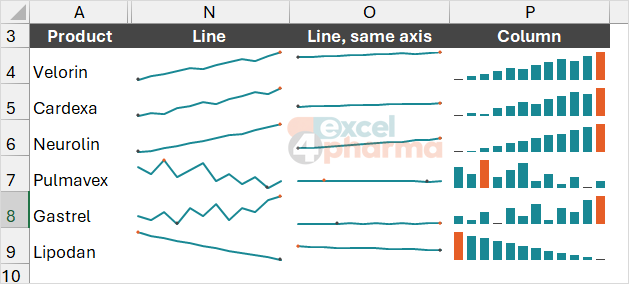
A sparkline is a chart drawn inside one cell. Excel offers three types: Line, Column and Win/Loss. To create one, select the cell at the end of the row, choose Insert and the type, enter the Data Range and confirm. Drag the fill handle to add one for each row, or use Fill Down, Ctrl+D, as Microsoft notes. On the Sparklines sheet, A3:M9 holds twelve months for six products, and the sparklines sit in N4:P9.
Select a sparkline and the Sparkline tab appears on the ribbon. There you can change type and style, set colors and weight, and in the Show group turn on markers and mark the points that matter, such as the high point and the low point. Microsoft's pages describe markers; the high, low and other point options are standard on the same tab.
Axes: the trap of independent scales
By default each sparkline has its own vertical scale, fitted to its own data. It is a sensible default for the shape of a single series and a misleading one for comparison. In column N, Gastrel, whose sales move between 34 and 41, looks as lively as Velorin, which moves between 412 and 505, because both fill the same cell height.
Column O fixes it. Select O4:O9, then Axis > Vertical Axis Minimum Value Options > Same for All Sparklines, and repeat for the maximum. Now all six share one scale: Gastrel almost flattens at the bottom, Velorin climbs near the top, and the picture matches the numbers. Which version is right depends on the question: independent scales to see the shape of each series, shared scales to compare sizes. Column P shows the same data as column sparklines with the high and low points colored.
The Axis button has other settings, too: a Date Axis Type for data that are not evenly spaced, and a Custom Value for a minimum or maximum you set yourself. Under Edit Data, the Hidden & Empty Cells dialog decides how to draw empty cells, as gaps, as zero or by connecting the points, and whether to show data from hidden rows and columns.
Win/Loss
A Win/Loss sparkline ignores the size of a value and shows only whether it is above or below zero, as a bar up or down. It needs values that are positive or negative, and the data on a row of month-on-month changes qualify. In rows 13 to 18, each cell holds the sign of the change from one month to the next, calculated with SIGN, and the sparklines in N13:N18 draw a bar up for growth and down for decline. Column O counts the months of growth with COUNTIF: Velorin 9 of 11, Neurolin 11 of 11 and Lipodan none. The shape is a very compact summary of consistency.
Practical points
Sparklines are not objects: they live in the cell background, and text typed in the cell appears over them. They resize with the row height and the column width, so widen the column and increase the row height for a clearer line. Select one sparkline cell to see its group; a change made to a group applies to all its members. To delete, use Sparkline > Clear. And remember what sparklines are not: they have no axis labels or values, so they give shape, not numbers. Put them beside the table, near the data they summarize, as Microsoft advises.
Common mistakes
- Letting Excel choose the secondary axis bounds and then reading meaning into where the lines cross.
- Using a secondary axis for two series of the same unit, which can share the main axis.
- Not naming, in the axis titles, which series belongs to which axis.
- Comparing sparklines of independent scales as if they showed the same thing.
- Forgetting that a Win/Loss sparkline needs values above and below zero, not raw sales.
- Expecting numbers from a sparkline: add the figures in the next column.
Companion file
Illustrative data only. Not a decision tool.For further reading
- Add a secondary axis - Microsoft Support
- Use sparklines to show data trends - Microsoft Support
- Analyze trends in data using sparklines - Microsoft Support