
Linked Data Types
The problem
A finance analyst converts a budget set in euros into US dollars. The rates change daily, and typing them by hand means someone has to remember to do it and to record when. A second analyst needs the population of the countries in a launch list, to size a rough prevalence-based estimate. Both are lookups against information that lives outside the workbook, and both used to require a web query or a manual copy.
Linked data types bring such information into a cell as a structured record, which a formula can then query field by field. They are convenient for quick, light jobs. They are also a source of numbers that change without anyone touching the file, which in a controlled model is a risk. This article shows how they work and how to use them safely.
Short theory
A linked data type turns the content of a cell from text into an entity: a record with a name and a set of fields, supplied by an online data provider. A cell holding the text Switzerland can become a record of the type Geography, with fields such as population, capital and area. A cell holding EUR/USD can become a record of the type Currencies, with a field for the price. Cells with a record show a small icon in front of the name.
The record is linked: Excel keeps a connection to the provider, and Refresh All brings the fields up to date. Therefore the value of a field depends on when it was last refreshed. A report built on these fields is a view of a moving source, not a fixed fact.
Availability is a matter of plan and region. The types available are tied to a Microsoft 365 subscription and to the sign-in account, and a type can be added or withdrawn by Microsoft. Types that earlier versions offered, such as some organizational and third-party types, are no longer available. Check the list of the current types before building a process on one.
Steps in Excel
Convert text into records
Type the names in a column, one per cell, with no extra text: Germany, France, Italy, Spain, Switzerland. Select them, and on the Data tab, in the Data Types group, pick Geography. Excel matches each text with a record. If it is unsure, a question mark appears in the cell and the Data Selector pane on the right offers the candidates; pick the correct one. A cell that was matched shows the record icon.
The companion file cannot contain records created by a script, because they come from the provider's service. The Convert Me sheet therefore has the lists as plain text, ready to convert. Run the conversion on your own copy.

Pull the fields
With a converted cell selected, a small icon appears at its top right. Click it and choose a field, for example Population: Excel writes the value in the cell next to the record. This is quick but gives you only a value, not a formula you can audit.
The more controlled way is to write the formula. If A2 holds a record, the field is read with the dot:
=A2.Population
Typing the dot after the cell reference opens a list of the available fields. A field name with spaces needs brackets:
=A2.[Currency name]
Alternatively, the function FIELDVALUE takes the record and the field name as text:
=FIELDVALUE(A2,"Population")
The advantage of FIELDVALUE is that the field name can sit in a header cell and be filled across, so one formula covers many fields. The Field Syntax sheet shows the same pull written all three ways, plus the table form =tblGeo[@Country].Population for records inside an Excel table, where the dot reads a field of the record in that row.
If a field does not exist for that record, the result is a #FIELD! error. Wrap it in IFERROR only when a blank is a meaningful outcome.
A currency snapshot
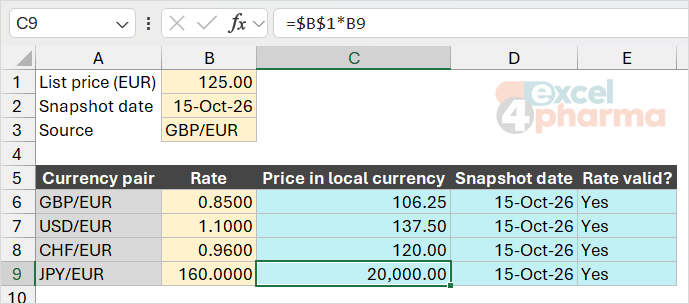
Currency conversion is the use case with the highest practical value, and the one that most needs discipline. The FX Snapshot sheet is a template: the amount in euros is in B1 (125), the snapshot date is in B2, and the rate table starts at row 6. Each converted amount is:
=$B$1*B6
where B6 is the rate. The rates in the file are placeholders; the point is the design. You convert the currency pairs with the linked type, read the price field, and then copy the values over the formulas with Paste Special, Values, writing the date next to them. From then on the model uses a fixed rate with a documented date, and does not change next time the file is opened.
This is the general rule for any linked field in a model that someone will rely on: link while exploring, freeze when reporting.
What is and is not worth doing
The geography and currency types suit rough sizing and quick conversions. They do not suit anything that needs a stated source and a reproducible value: regulatory submissions, pricing corridors, official reference prices. For those, use a table of reference data that you maintain, with its source and date. Stock types, which many guides mention, have no role in the typical pharma commercial model; the same caution about frozen values applies if you use them for a quick market-cap lookup.
When the data types are missing
If the Data Types group does not show the types, the usual reasons are three. The Excel build is old or on a channel that has not received the feature. The account is not signed in with a Microsoft 365 subscription. Or the plan or tenant does not allow the connected experiences that the types rely on, a setting controlled by the organization's administrator. Under File, Account, you can see which version and channel you are on. The documented requirement is a subscription with the right plan, a sign-in and a connection, not the type of family or personal plan.
Common mistakes
- Treating a linked field as a stable number. It refreshes with the source; freeze it with Paste Values before reporting.
- Converting text that contains extra words. "Switzerland (market)" does not match; keep one entity per cell.
- Accepting an automatic match without looking. Names like Georgia or Guinea exist in more than one place; check the icon and the pane.
- Sharing the workbook with someone without the feature. The cells remain as records, but the fields cannot be refreshed and may show errors.
- Using a linked type for a number that needs a source in the audit trail.
Companion file
Illustrative data only. Not a decision tool.For further reading
- Linked data types FAQ and tips - Microsoft Support
- What linked data types are available in Excel? - Microsoft Support
- How to write formulas that reference data types - Microsoft Support