
From Recorded to Clean Code
The problem
Every month the commercial team receives an export of net sales by month: a title, a subtitle, a blank row, then a header row with Month and one column per product, and one new row at the bottom each month. The monthly summary needs only the latest month. Someone records a macro that does it: go to the tracker, find the Month header, jump to the bottom of the list, copy the row, paste it on the summary sheet. It works on the day it is recorded.
The next month the export has one more row, the macro copies the old one, and nobody notices for a week, because the numbers look perfectly plausible. This is the typical life of a recorded macro, and the fix is not to stop recording. It is to treat the recording as a draft and clean it up before anyone relies on it.
The companion file has the tracker (24 months, Jan-24 to Dec-25, with the header in row 4), a New Month sheet with Jan-26, and three versions of the same macro: as recorded, a tempting shortcut, and a clean version. A Check sheet compares what each macro copies with what it should have copied.
Why recorded code is fragile
The Macro Recorder translates clicks into code, and it can only write what you did, not what you meant. Three habits follow, and they explain almost every problem with recorded macros:
- it works through the selection: select a sheet, select a cell, then do something to whatever is selected;
- it writes fixed addresses: the cell you clicked, not the rule you followed to get there;
- it records every argument of every dialog, including the ones you never touched.
Microsoft's own documentation notes that the recorder often produces code built on Select and Selection, and that in VBA selecting is usually unnecessary: you can act on a cell directly. Clean code is mostly the result of undoing these three habits.
The recorded macro
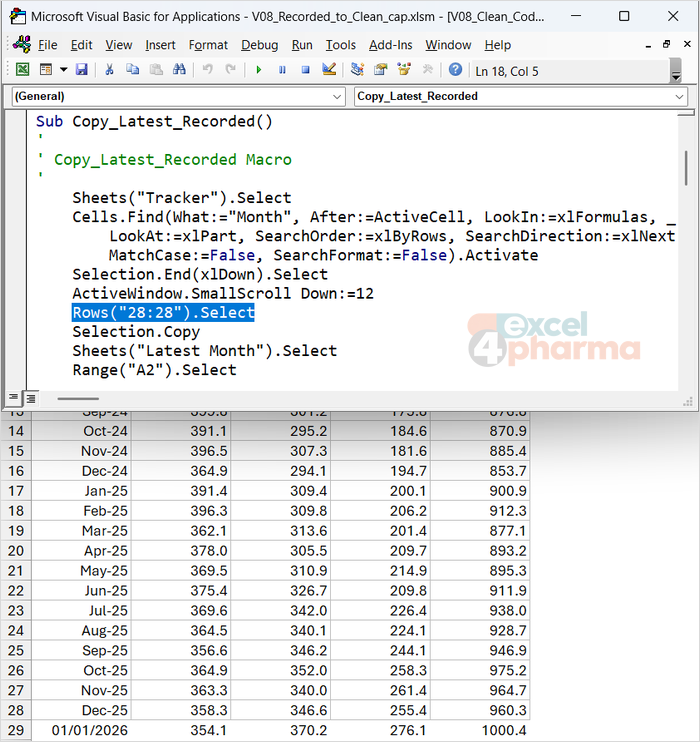
Here is Copy_Latest_Recorded, close to what the recorder writes for the task above:
Sub Copy_Latest_Recorded()
    Sheets("Tracker").Select
    Cells.Find(What:="Month", After:=ActiveCell, LookIn:=xlFormulas, _
        LookAt:=xlPart, SearchOrder:=xlByRows, SearchDirection:=xlNext, _
        MatchCase:=False, SearchFormat:=False).Activate
    Selection.End(xlDown).Select
    ActiveWindow.SmallScroll Down:=12
    Rows("28:28").Select
    Selection.Copy
    Sheets("Latest Month").Select
    Range("A2").Select
    ActiveSheet.Paste
    Application.CutCopyMode = False
End Sub
Read it line by line before changing anything, it is the fastest way to learn what the recorder thinks you did. The second statement is the Find dialog box (Ctrl+F) with all its options. End(xlDown) is Ctrl+Down Arrow. The SmallScroll line is you scrolling the window to see the bottom of the list: it changes nothing in the workbook. Then comes the line that matters: Rows("28:28").Select. You clicked the row heading of row 28 because that was the last row, and the recorder wrote "row 28".
Run it in the companion file and Check shows Match. Now run Add_New_Month, which appends Jan-26 in row 29, and run the recorded macro again. It copies Dec-25 again, and Check shows Check. Look again at the code and you will notice something worse: the Find and End lines do not influence the result at all. Whatever they find, the next line goes to row 28. Three lines of apparently clever navigation are dead code.
The tempting shortcut
The usual first reaction is to shorten everything into one line: find the header, go down, take the row number. Copy_Latest_Halfway does exactly that:
lastRow = Cells.Find(What:="Month").End(xlDown).Row
It looks cleaner and it is wrong in two ways that are not visible on a quick test.
First, Find was called with only the text to look for. That does not mean "use the defaults". According to Microsoft's documentation, the LookIn, LookAt, SearchOrder and MatchByte settings are saved every time Find is used, from code or from the Find dialog box, and an omitted argument takes the saved value. If the last search was a partial match, this one is too, and the search starts after the top-left cell. In the companion file the subtitle in A2 reads "Net sales by month, all markets": a partial match finds it before the header in row 4. End(xlDown) from A2 then jumps over the blank row 3 and stops on the header, and the macro copies the column titles as if they were the latest month. Click on sheet Tracker, run Copy_Latest_Halfway and Latest Month shows Month, Velorin, Cardexa... in row 2. The fix is to state the arguments every time, as the documentation itself recommends.
Second, End(xlDown) stops at the first blank cell. One empty row in the middle of the export and the macro copies a month from last year.
The shortcut also relies on whichever sheet happens to be active, since Cells and Sheets are not qualified. Shorter is not the same as cleaner.
Cleaning up, step by step
The clean version, Copy_Latest_Month, is the result of six edits. Each one fixes a specific weakness, and the sheet Clean-up Checklist in the companion file lists them in a form you can reuse.
1. Name the objects, then forget the selection
Instead of selecting a sheet and working on whatever is active, set one object variable per sheet at the top, qualified with ThisWorkbook:
Dim wsSet As Worksheet, wsSrc As Worksheet, wsOut As Worksheet
Set wsSet = ThisWorkbook.Worksheets("Settings")
Set wsSrc = ThisWorkbook.Worksheets(CStr(wsSet.Range("B3").Value))
Set wsOut = ThisWorkbook.Worksheets(CStr(wsSet.Range("B4").Value))
From here on, nothing is selected and nothing is activated. The macro runs the same whether the user is on the tracker, on another sheet or in another workbook, and it leaves the screen where the user left it. Select also has a practical limit: it works only on the active sheet, which is why recorded code is full of Sheets(...).Select lines.
2. Move the names out of the code
The sheet names and the header text are not typed in the macro: they are read from the yellow input cells of sheet Settings, B3 to B5. If next year's export calls the column Period instead of Month, someone changes a cell, not the code. For values that never change, a constant at the top of the module (Const HEADER_TEXT As String = "Month") does the same job. CStr turns the cell content into text, so a sheet called 2026 is not mistaken for the 2,026th sheet.
3. Find the header with every argument stated, and test the result
Dim headerCell As Range
Set headerCell = wsSrc.Cells.Find(What:=headerText, LookIn:=xlValues, LookAt:=xlWhole, _
    SearchOrder:=xlByRows, MatchCase:=False)
If headerCell Is Nothing Then
    MsgBox "Header """ & headerText & """ not found on sheet " & wsSrc.Name & ".", vbExclamation
    Exit Sub
End If
LookAt:=xlWhole means the cell must contain exactly the header text, so the subtitle no longer qualifies. LookIn:=xlValues searches the values of the cells rather than their formulas. Arguments that do not matter for this search, such as SearchFormat, are left out; those that do, are always written.
The If block handles the case the recorder never imagines. Find returns Nothing when nothing matches, and the recorded .Activate on Nothing stops the macro with runtime error 91, a message that means nothing to a user. The clean version says what is missing and stops politely. In the companion file, rename Tracker!A4 to Period and run both versions: the recorded one still runs without complaint, because its partial match lands on the subtitle and row 28 is copied anyway, while the clean one reports the missing header. Type Period in Settings!B5 and it works again.
4. Find the last row from the bottom
lastRow = wsSrc.Cells(wsSrc.Rows.Count, headerCell.Column).End(xlUp).Row
nCols = wsSrc.Cells(headerCell.Row, wsSrc.Columns.Count).End(xlToLeft).Column - headerCell.Column + 1
Starting from the last row of the sheet and going up is immune to blank rows inside the list. The number of columns is found the same way along the header row, so a fourth product next year is picked up without a code change. A second guard, If lastRow = headerCell.Row, stops the macro when the export arrives with a header and no data.
5. Assign values instead of copying
wsOut.Range("A1:A2").EntireRow.ClearContents
wsOut.Range("A1").Resize(1, nCols).Value = headerCell.Resize(1, nCols).Value
wsOut.Range("A2").Resize(1, nCols).Value = wsSrc.Cells(lastRow, headerCell.Column).Resize(1, nCols).Value
Copy, Paste and CutCopyMode disappear. The values travel directly from one range to the other, without the clipboard: faster, no flicker, and nothing breaks if the user copies something else while the macro runs. The output rows are cleared first, so a shorter header this month does not leave last month's extra column behind.
There is a trade-off worth knowing. Paste carries formats; Value carries only values. A date assigned this way arrives as a date serial, and the cell shows 46023 unless it is already formatted. In the companion file the Latest Month sheet is pre-formatted, which is the usual approach for a report template. When formats must travel too, set NumberFormat explicitly in the code rather than going back to the clipboard.
6. Make it readable
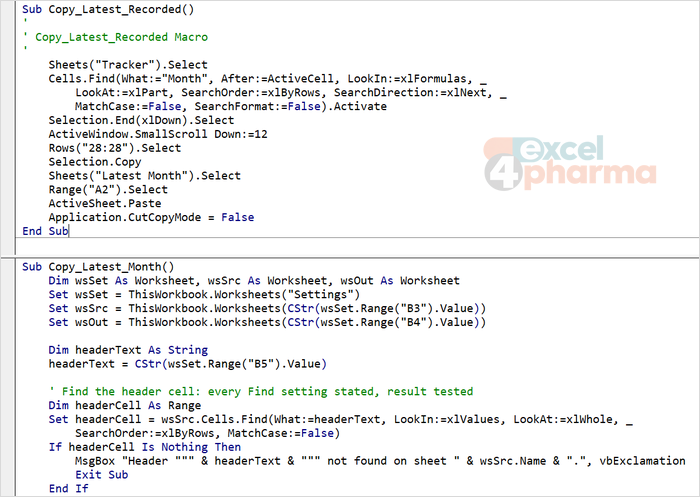
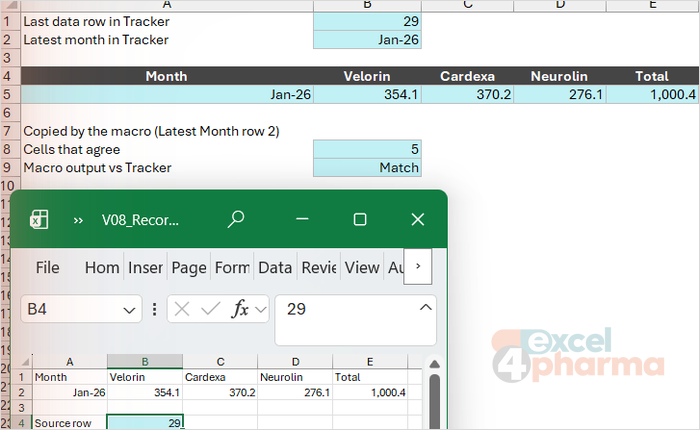
Option Explicit at the top of the module, every variable declared with a type, Long for row numbers, a descriptive name for the macro instead of Macro1, and one short comment per block saying why, not what. The clean macro also writes the source row number in Latest Month!B4: one line that makes the result checkable at a glance. Run Add_New_Month and Copy_Latest_Month and B4 shows 29, the Jan-26 row, and Check shows Match.
Is it worth it?
The clean version is longer than the recording: about 30 lines against 15. Length is not the measure. The recorded macro works only on the file it was recorded on, fails silently when the data grow, and cannot be read without replaying the clicks in your head. The clean one adapts to new rows and new columns, tells the user what went wrong, and can be read by a colleague a year from now.
The recorder remains useful even when you write code yourself. When you do not know how VBA names a setting, record yourself doing it once, read the line you need and throw the rest away. That is exactly what we did with the Find arguments here. AI assistants are equally good at drafting the first clean version from a recording; the checklist is what you use to review their output, because the same weaknesses (unqualified ranges, missing Nothing tests, implicit Find settings) appear in generated code too.
Common mistakes
- Keeping Select and Activate. They slow the macro, depend on the active sheet and leave the user somewhere unexpected.
- Leaving a fixed address such as Rows("28:28") in code that runs on data that grow.
- Calling Find with only What. Omitted arguments inherit the last search, including one typed in the Find dialog box by the user.
- Chaining a method onto Find (Find(...).Activate, Find(...).Row) without first checking that the result is not Nothing.
- Finding the last row with End(xlDown) from the header instead of End(xlUp) from the bottom of the sheet.
- Copying and pasting through the clipboard when a direct value assignment does the job.
- Shortening the code without qualifying it: a one-line macro on the wrong sheet is still wrong.
- Typing sheet names and header labels into the code instead of a settings cell or a constant.
Companion files
Illustrative data only. Not a decision tool.For further reading
- Selecting and activating cells - Microsoft Learn
- Range.Find method (Excel) - Microsoft Learn