
Sorting and Custom Lists
The problem
A market access team keeps a list of formulary decisions: one row per product and payer, with the decision taken, a restriction note and a few dates. The list has 36 rows in the companion file, in the order in which the decisions arrived. Someone asks for it "by decision, best first". Sorting the column A to Z gives Listed, Listed with restrictions, Not listed and Under review. Alphabetical, and wrong: Under review is a pending case, not the worst outcome, and Not listed is the worst. What the team wants is a business order, not a dictionary order.
Sorting looks like a beginner topic, and the simple case is. But three situations catch experienced users: sorting by more than one criterion, sorting by something other than the value of a cell, and sorting data that other formulas depend on. This article covers all three.
Short theory
A sort rearranges whole rows according to the values of one or more key columns. Excel compares the values in the key column and puts them in ascending or descending order. The ascending order is fixed: numbers first (negative to positive), then text (A to Z, ignoring case), then logical values, then errors, with blank cells always last, whichever direction you choose.
Two details matter for everything that follows. First, the sort is a one-off action, not a rule: if you add a row afterwards, the list does not re-sort itself. Second, a sort changes the physical position of the data, so any formula that refers to a cell by its address now points to different content. Formulas that stay inside the same row survive the sort. Formulas that point to other rows do not.
Steps in Excel
Sorting by one column
Click any cell in the column to sort, then on the Data tab choose Sort A to Z or Sort Z to A. Excel detects the surrounding block of data and moves all of its rows together. If the block has a header row, Excel recognizes it and leaves it in place. The check to do is visual: if your header ended up in the middle of the data, undo and use the full dialog described below, where the option My data has headers can be set explicitly.
Sorting by several levels
The Sort button on the Data tab opens the full dialog. Here you add a level for each criterion. In the companion file, sort the Data sheet by Decision first and, within each decision, by a second column in descending order. Each Add Level is a tie-breaker for the level above it. Excel allows up to 64 levels in total, not 64 per field, a figure that is sometimes quoted incorrectly.
Behind each level are three choices. Sort On says what to look at: the cell value, the cell color, the font color or the conditional-format icon. Order says which direction. The third choice, Custom List, is the subject of the next section.
Sorting by color
When a team marks rows by hand, or conditional formatting does it automatically, the color carries a meaning that no value reproduces. In the Data sheet the Decision column is colored by outcome. In the Sort dialog, set Sort On to Cell Color and choose which color goes on top; then add one level for each further color. A level handles exactly one color at the top, so three colors need three levels.
Sorting left to right
Sorting normally works on rows. When the periods are in columns, as in a monthly forecast laid out across the sheet, open Sort, then Options, and choose Sort left to right. The key then becomes a row, and whole columns move. Use it sparingly: columns that hold formulas referring to other columns often break.
Sorting with a custom list
A custom list is an ordered list of values that Excel treats as the sequence. Months and weekdays work this way already, which is why a sort by month name returns January to December only if you tell Excel to use that list.
To create the formulary order: open File, Options, Advanced, scroll to the General section and choose Edit Custom Lists. In the box List entries, type the four decisions one per line in the order you want: Listed, Listed with restrictions, Under review, Not listed. Click Add. Alternatively, with the entries already in cells (the Custom Order sheet has them in A2:A5), click the range selector next to Import list from cells and choose Import.
Now, in the Sort dialog, under Order, choose Custom List and pick the new list. The sort now follows the business order.
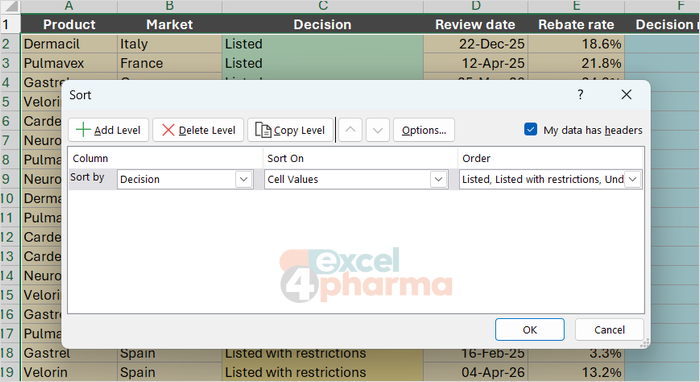
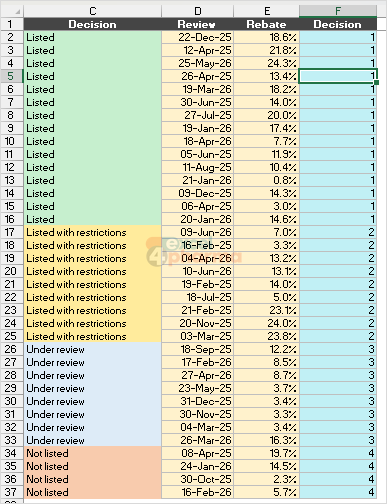
There is a limit that matters in a team. A custom list lives in the Excel application of the person who created it, not in the workbook. If you send the file to a colleague, the data goes but the list does not, and the sort cannot be reproduced on their computer. The companion file shows the portable alternative: a helper column that looks up the position of each decision in a table. In Data, column F contains:
=MATCH(C2,'Custom Order'!$A$2:$A$5,0)
This returns 1 for Listed and 4 for Not listed. Sorting on this number gives the same result as the custom list, anywhere, and it also documents the order in the workbook itself. For a model that others will use, this is the safer choice.
Sorting and lookups
A sort also decides whether some formulas give the right answer. A lookup in approximate-match mode, such as a VLOOKUP with TRUE as last argument, or a MATCH with match type 1, assumes the table is sorted in ascending order. It does a binary search: it jumps to the middle, decides left or right, and repeats. On unsorted data the jump goes the wrong way and Excel returns a plausible but wrong value without any warning.
The Sort Dependency sheet shows this with a rebate scale in which volume bands give a rebate. The same eight volumes are looked up against the sorted table (columns A and B) and against the same bands in a different order (columns D and E). Column H uses the sorted scale and gives the right rebate everywhere. Column I uses:
=VLOOKUP(G2,$D$2:$E$6,2,TRUE)
on the shuffled scale, and column K flags every row where the two results differ. Depending on the volume, the shuffled version may be right by luck for some rows and wrong for others. The result can also differ between Excel versions, which is the point: the behavior on unsorted data is not defined.
Column J shows the way out for a scale that cannot be sorted. It does not depend on order:
=INDEX($E$2:$E$6,MATCH(MAXIFS($D$2:$D$6,$D$2:$D$6,"<="&G2),$D$2:$D$6,0))
MAXIFS finds the highest band start that does not exceed the volume, and the exact-match MATCH finds where it is. XLOOKUP in approximate mode (match mode -1, next smaller item) is also independent of order and is the simpler modern option when it is available.

Text that does not sort as expected
The Gotchas sheet collects the cases that make a sort look broken.
Codes such as 10, 2 and 1 stored as text sort as 1, 10, 2, because Excel compares them character by character. Numbers stored as text also sort after real numbers in the same column. The cure is to convert them to real numbers, or to pad the codes to the same length with leading zeros.
Leading and trailing spaces change the order too. A value typed as " Listed" with a space in front sorts before every value that starts with a letter. The cure is a helper column with =TRIM(A2), which removes the extra spaces, then pasting the values back over the original.
Merged cells in the sort range stop the sort altogether, because Excel needs every cell in the key column to have the same shape. Unmerge first.
Common mistakes
- Selecting only one column and sorting it. Excel may offer to expand the selection; if it does not, the column moves alone and the rows no longer match. Always click one cell inside the list, not a part of it.
- Sorting a list whose formulas point to other rows without checking. Formulas that refer to a different row, such as a running total or a "previous row" comparison, give different results after the sort.
- Assuming a custom list travels with the file. It does not; use a helper column when others need to repeat the sort.
- Using approximate-match lookups on a table that has been re-sorted, or that has never been sorted.
- Hidden rows. A sort moves hidden rows with the rest, but a filtered list is sorted among the visible rows only in the sense that the hidden rows stay hidden, which can be confusing. Clear the filter before sorting if the order of all rows matters.
Companion file
Illustrative data only. Not a decision tool.For further reading
- Sort data in a range or table - Microsoft Support
- Sort data using a custom list - Microsoft Support
- Create or delete a custom list for sorting and filling data - Microsoft Support