
Conditional Formatting Rules
The problem
A table of 200 net sales figures contains perhaps ten that matter: the ones far above target, the ones far below, the duplicate pack codes that should not be there, the empty cells where someone forgot to type. Finding them by eye is slow and unreliable, and coloring them by hand is worse, because the colors go stale the moment a number changes.
Conditional formatting solves this by attaching a rule to a range. The rule is evaluated continuously and the format appears or disappears by itself. In a well-built model the purpose is never decoration: it is to turn a field of numbers into something that can be read at a glance, with the exceptions already marked.
The examples use G03_Conditional_Formatting.xlsx. The Highlight Rules sheet has one built-in rule per block, the Formula Rules sheet shows rules that use formulas and parameter cells, and the Rule Order sheet shows what happens when two rules disagree. All figures are illustrative.
How it works
A conditional format does not change what a cell contains, only how it looks while a condition is true (the same principle seen with number formats: the format is a layer over the value). Every rule has three parts: the range it applies to, a condition, and a format to apply when the condition is true. Select the range first, then open Home > Conditional Formatting. The menu offers ready-made rules, and New Rule at its bottom opens the full dialog, where every ready-made rule can also be built by hand with more care.
The dialog begins with the rule type. These are the ones you will use:
- Format all cells based on their values: data bars, color scales and icon sets (covered in the article on dashboards).
- Format only cells that contain: a value, text, a date, blanks or errors.
- Format only top or bottom ranked values: the top or bottom N items or percent.
- Format only values that are above or below average.
- Format only unique or duplicate values.
- Use a formula to determine which cells to format: the most powerful, and the one that needs a little care.
Built-in rules
Highlight cells and ranked values
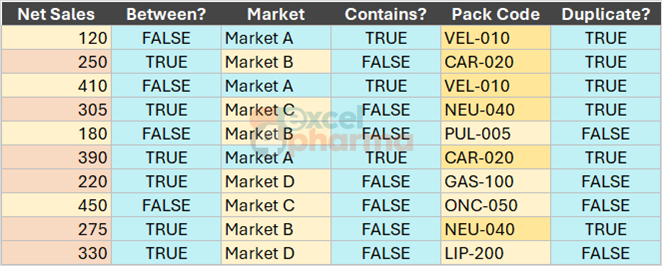
The quickest rules live under Highlight Cells Rules and Top/Bottom Rules in the Conditional Formatting menu. They need one parameter and a format, nothing more. The Highlight Rules sheet applies five of them to ten rows of illustrative data, and each block carries a column of TRUE and FALSE flags computed with ordinary formulas, so you can see which cells should be colored and compare.
- Between on net sales, with the lower and upper limits taken from cells L4 and L5, not typed into the rule. Change the limits and the colors follow.
- Text that contains on the market column, searching for the text in L6.
- Duplicate Values on the pack code column.
- Top 10 Items, set to the top 3, on units.
- Above Average on net price.
The habit worth acquiring is the first one: when a rule needs a threshold, point it to a cell. A threshold typed into a rule is invisible, cannot be documented and has to be found and changed in the rule manager. A threshold in a cell is a parameter like any other.
Rules ending in dates
The Cell Value family also offers a Dates Occurring rule with options such as yesterday, this week or next month. These are evaluated against the day on which the file is opened, so a file that looks right today looks different tomorrow. They are useful for trackers of expiring items, such as authorization renewals, and should be tested by changing the system date, not by trusting one screen.
Formula rules
The logic in one sentence
A formula rule is a formula that returns TRUE or FALSE for each cell in the range, written as if for the first cell only. Excel then adjusts it for every other cell exactly as it does when copying a formula. The part that confuses most users is the references: the rule is written from the point of view of the top-left cell of the selected range, with absolute references where the formula must not move.
On the Formula Rules sheet the range C4:C18 holds net sales. To color the cells above the 90th percentile green, the rule on C4:C18 is:
=$C4>PERCENTILE($C$4:$C$18,$L$4)
The comparison cell has a locked column and a free row, so each row tests its own value, while the range inside PERCENTILE is fully locked, because every row must be compared with the same set of numbers. L4 holds 0.9. A second rule on the same range gives cells below the 10th percentile a red border:
=$C4<PERCENTILE($C$4:$C$18,$L$5)
The format of a rule can be a fill, a font color, a border or a number format, and you can combine them. One rule can even use only a border so that it adds to, instead of competing with, a fill from another rule.
Highlighting a whole row
The same technique colors an entire row from one column. Select A4:E18 and use the rule:
=$E4<$L$6
where column E holds the variance against target and L6 the alert level, here -10%. The dollar sign before E is what makes the whole row react to column E: every cell in A:E reads the same column, with the row moving down. Without it, each cell would look at its own column and the effect would be a diagonal mess.
Banding
Alternate row shading is a formula rule too. On the Banding sheet the range A4:C13 uses:
=MOD(ROW(),2)=0
which is TRUE on every even row. Unlike hand-applied fills, it survives sorting and the insertion of rows, because the shading depends on the row number, not on the data.

Rule order and Stop If True
Several rules can act on the same cell. When they set different values of the same property, such as two fill colors, the rule higher in the list wins. New rules go to the top. To see and change the order, use Conditional Formatting > Manage Rules, select one rule and move it with Move Up or Move Down; the box Show formatting rules for switches between the selection, the sheet and other sheets.
The Microsoft example is the clearest: two rules on the same cells, blue above 60,000 and yellow above 70,000. With the blue rule on top, every cell above 70,000 appears blue, because both conditions are true and the first rule wins. Swap them and the cells above 70,000 become yellow while those between 60,000 and 70,000 stay blue. The Rule Order sheet builds both versions with the same data, and a column of formulas spells out the color you should see.
The check box Stop If True goes further. When the rule is true, Excel does not evaluate the rules below it at all. It matters for rules that set different properties, such as an icon in one rule and a font color in another, where ordinary precedence would let both apply. Treat it as a way of saying "if this applies, ignore the rest".
Keep the number of rules low. Two or three well-chosen rules explain themselves; fifteen turn a sheet into a puzzle, whatever the limit of the software.

Finding and cleaning rules
Rules are easy to forget. To see all cells with a conditional format on a sheet, press F5, click Special, choose Conditional formats and leave All selected. Choose Same instead to find the cells that share the rule of the cell that was active before opening the dialog. To remove rules, use Conditional Formatting > Clear Rules, choosing the selected cells or the entire sheet.
Two behaviors cause surprises. If you change the condition for a single cell inside a larger range, that cell no longer follows the rule of the others, and the range cannot be reformatted in one go: change rules from the Manage Rules window, applying them to the whole range. And copying a cell copies its conditional format with it, so a pasted range can bring unwanted rules along; use Paste Special > Values when you want only the numbers.
Common mistakes
- Typing thresholds into rules instead of pointing to a cell. Use parameter cells.
- Forgetting the dollar signs in a formula rule, so the rule drifts as it fills the range.
- Writing the formula for a cell other than the top-left of the selected range, which shifts every result by a row or column.
- Leaving conflicting rules without checking their order.
- Piling up rules on top of each other after copying and pasting ranges. Open Manage Rules for the whole sheet from time to time.
- Relying on color alone for a message people have to act on. Color-blind readers and black-and-white printouts lose it; combine it with text or an icon.
Companion file
Illustrative data only. Not a decision tool.For further reading
- Manage conditional formatting rule precedence - support.office.com
- Conditional formatting - Microsoft Support