
Dashboards with Conditional Formatting: Data Bars, Color Scales and Icon Sets
The problem
Management asks for a one-page view of how the launch is going in eight markets. A table of 40 numbers answers the question, but only to the reader who has the time to compare each figure with its neighbors. A chart per measure would add eight objects to the page and a lot of maintenance. There is a third way: keep the table, and let the cells themselves show the ranking, the distance from target and the status.
Three conditional formatting tools do exactly that. Data Bars draw a bar inside a cell whose length reflects the value. Color Scales shade each cell on a gradient from low to high. Icon Sets place a small symbol, an arrow or a traffic light, according to which band the value falls in. Together they turn a range into a dashboard in the literal sense: a view that can be read at a glance and that updates by itself.
The examples use G04_Dashboard_Formatting.xlsx. The Dashboard sheet holds eight fictional markets with net sales, a target, the achievement, a gross-to-net deduction rate and a status. The Heatmap sheet shows a product-by-month grid. All figures are illustrative.
The three tools
All three are found under Home > Conditional Formatting, and each applies to the selected range. They are rules in the same family as the ones in the article on conditional formatting rules, so they can be edited from Manage Rules and clear like any other. What changes is the rule type: Format all cells based on their values. Here every cell in the range receives a format, and it depends on where the value sits relative to the others.
Each tool has a small number of settings, shown when you choose More Rules instead of one of the presets, and the defaults are rarely the right ones for a decision tool.
Data bars
A data bar fills part of the cell with a colored rectangle in proportion to the value. The first trap is the scale of the bar. If the minimum is set to the lowest value of the range, the smallest value gets a bar of almost no length, which exaggerates differences between values that are in fact close. Open Edit Rule and set the minimum type explicitly to Number with 0, instead of leaving it to the preset, so a bar of half the length means half the value. When values are very different in size, as one market ten times larger than another, bars compare badly and the largest value dominates; consider a different measure, such as achievement against target, where all values sit in the same band.
On the Dashboard sheet the net sales in B4:B11 carry data bars with a minimum of 0, a solid fill in the teal of the project palette and the maximum set automatically.
Color scales
A two-color or three-color scale paints each cell with a shade between the colors chosen for the lowest and the highest values, and for the midpoint in a three-color scale. The endpoints can be a lowest and highest value, a fixed number or a percentile, so a single outlier does not flatten the scale for everybody else. In the Heatmap sheet the grid of monthly net sales by product uses a three-color scale where the midpoint is the 50th percentile, the median, so that half the cells fall on each side of the middle color.
Choose colors with meaning. For a measure where low is bad, such as achievement, the low end is the warm color. For one where high is bad, such as the gross-to-net deduction in E4:E11, the roles are swapped, and the sheet shades from light blue for low deductions to orange for high ones. A scale that runs red to green is a convention people accept, but it fails for readers with red-green color blindness, roughly one man in twelve, so prefer a single-hue scale or the palette colors when the sheet is going to a wide audience.

Icon sets
An icon set divides the range into three, four or five bands and puts one symbol in the cell for each. The default bands are percentage bands of the range: for three icons, the top symbol goes to values at or above 67% of the range between minimum and maximum, the middle one from 33% to 67%, and the bottom one below. That is almost never what you mean. A manager who says that 95% of target counts as acceptable is describing a threshold, not a third of a range.
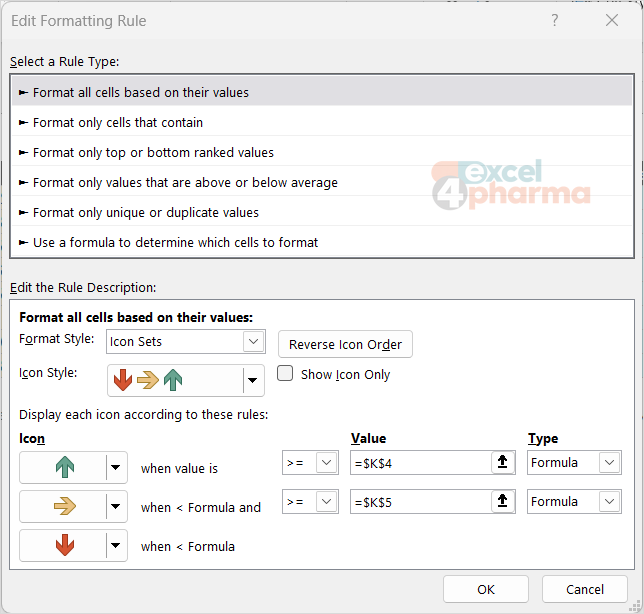
So set the thresholds yourself. In Edit Rule, change each Type to Number or Formula, and enter the limits. Choosing Formula allows a reference to a cell, so that the thresholds live in the parameter table, like the lower and upper limits of any other model. On the Dashboard sheet K4 holds the on-track threshold, 100%, and K5 the watch threshold, 90%. The arrow set in D4:D11 uses these cells: a green up arrow at or above K4, a yellow sideways arrow at or above K5 and a red down arrow below it.
A status column that carries only the icon
An icon next to a number is useful, but a dashboard often needs the symbol alone. The usual technique has two steps. A helper cell calculates a code:
=IF(D4>=$K$4,3,IF(D4>=$K$5,2,1))
and the traffic-light icon set on that code uses the thresholds 3 and 2 as numbers, with the option Show Icon Only selected, so the figure disappears and the light remains. The code stays in the cell, available for formulas such as COUNTIF, which can count how many markets are red. Column H adds the matching text with CHOOSE, for the reader who prints in black and white or uses a screen reader:
=CHOOSE(F4,"Behind","Watch","On track")
The text is the safe fallback for any message that matters: color and shape help the eye, but a word survives every medium.
Combining the tools
The tools can share a sheet, but not a cell without care. Two rules that both fill the cell, such as a data bar and a color scale, produce a muddle; a data bar and an icon on the same cell crowd each other. A better rule of thumb is one tool per column and one message per tool: bars for size, a color scale for intensity, icons for status. This is the structure of the Dashboard sheet, where each column answers one question.
Some practical limits are worth remembering. Data bars and color scales are meant for numbers: keep text and error values out of the range. And a dashboard built with formatting alone shows rank and status, not trend: when the question is a trend over time, a small chart or sparkline beside the table does the job better.
Printing and sharing
Check the layout in Print Preview before circulating a PDF, and test it on a black-and-white printout: shades that are clear on screen can turn into the same gray. For a dashboard that travels in a deck, paste the range as a picture; the colors stay, and the rules stay behind in the workbook.
Common mistakes
- Leaving the data bar minimum at Lowest Value, so small values look empty.
- Using icon sets with their default percentage bands instead of real thresholds.
- Typing the thresholds into the rule. Point to cells or use a helper code.
- Mixing several rule types on the same cells until nothing can be read.
- Using red-to-green scales for a wide audience without a second signal such as text.
- Applying a scale to a range that contains totals, which then dominate the maximum. Format the data, not the total row.
Companion file
Illustrative data only. Not a decision tool.For further reading
- Use data bars, color scales, and icon sets to highlight data - Microsoft Support