
Data Tables
The problem
A model gives one answer for one set of inputs. The market access director does not want one answer: she wants to see how the contribution moves when the gross-to-net discount goes from 10% to 40%, and then how it moves when volume changes at the same time. The slow way is to type each discount into the model and copy the result to a list, thirty times. The quick way is a data table, which asks Excel to do exactly that: put each value in the input cell, recalculate the model, and write down the result.
A data table is the most underused tool in the What-If menu, and the one that turns a model into a sensitivity analysis in two minutes. It is also the one with the most unusual rules, which this article lists.
Short theory
A data table is a range that Excel fills by repeated substitution. You give it a formula that depends on an input cell, a list of values to try, and the address of the input cell. For each value in the list, Excel puts the value in the input cell, recalculates the formula and writes the result in the table. When it is done, the input cell has its original value again.
There are two kinds. A one-variable table varies one input and can show the results of several formulas at once. A two-variable table varies two inputs and shows the result of a single formula, with one input on the rows and the other on the columns. There is no three-variable table: for more inputs, use scenarios, or lay out the combinations yourself.
The cells inside the table are not ordinary formulas. They are a single array that Excel manages, shown in the formula bar as {=TABLE(row input, column input)}. You cannot edit one cell of the table, delete part of it or insert a row in the middle: to change it, select the whole result area and clear it, or rebuild the table.
Steps in Excel
The companion file has the model on the Data Tables sheet, the same contribution model as in the Goal Seek article: units in B3 (120,000), list price in B4 (85.00), discount in B5 (22%), cost of goods per unit in B6 (9.50), fixed costs in B7 (1,500,000), net revenue in B9 and contribution in B10 (5,316,000).
A one-variable table
Take the discount as the variable. The layout, according to Microsoft, depends on the orientation of the list. For a list of values down a column, the formulas go one row above the first value and one cell to the right of the list. The block in A13:C21 follows this:
- The values to try are in A15:A21: 10% to 40% in steps of 5%.
- The formulas are in B14 and C14:
=B9(net revenue) and=B10(contribution). They refer to the model, not to the input cell directly. - The cell A14 above the list stays empty.
To create the table, select A14:C21, click Data, What-If Analysis, Data Table. In Column input cell enter B5 and leave Row input cell empty, because the values are in a column. Click OK. The table fills with the revenue and the contribution for every discount. At 10% the revenue is 9,180,000 and the contribution 6,540,000; at 40% the revenue is 6,120,000 and the contribution 3,480,000.
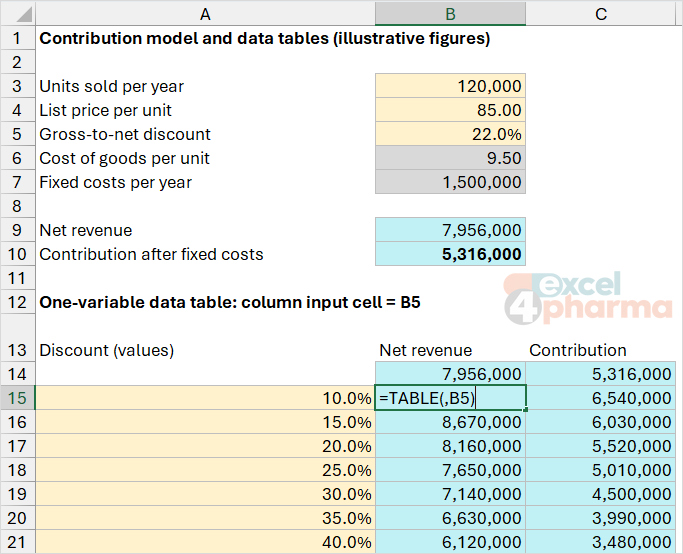
Notice what the cells contain. B15:C21 hold {=TABLE(,B5)}: the empty first argument is the row input cell, the second is the column input cell. If you ever have values in a row, the cell goes into Row input cell instead and the formulas go in the column to the left of the first value, one cell below the row.
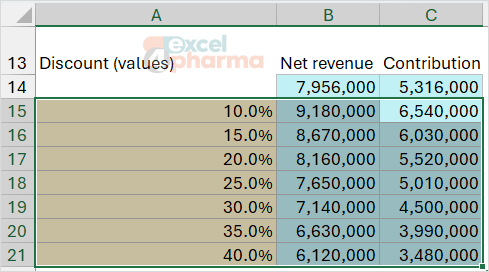
To show another result, add its formula in D14, select A14:D21 again and run the command again with the same input cell.
A two-variable table
Vary the discount and the volume at the same time. Here the layout changes: the formula goes in the top-left corner of the table, the values of one variable run across the row to its right and the values of the other run down the column below it. In the file, A25 contains =B10, the contribution. Units run across in B25:F25 (80,000 to 160,000 in steps of 20,000) and the discount runs down in A26:A32 (10% to 40%).
Select A25:F32, open Data Table and fill in both boxes. Row input cell takes the cell that the values across the top replace: B3, the units. Column input cell takes the cell that the values down the side replace: B5, the discount. The block B26:F32 fills with {=TABLE(B3,B5)}.
Read the grid like a map. At 120,000 units and 25% discount the contribution is 5,010,000; at 30% it falls to 4,500,000. The corners are 3,860,000 (80,000 units, 10% discount) and 5,140,000 (160,000 units, 40% discount). With 80,000 units and a 40% discount the product only contributes 1,820,000. To see where the 4,000,000 threshold of the previous article lies, apply a conditional format to the block: a rule that colors cells below 4,000,000 makes the frontier visible at once.
The easiest slip is to swap the two input cells. Excel will not warn you: the table fills with plausible numbers that answer another question. A check is to compare one cell by hand, as the next section does.

Checking the table
Columns H:M of the same sheet repeat the results with ordinary formulas, so that the table can be checked. In H13:K21 each row recomputes the revenue and the contribution for its discount, and column K shows the difference with the data table, which should be zero. In I25:M32 the grid is recomputed with a direct formula. Cell L34 shows the largest absolute difference between the one-variable table and its check: zero.
The habit is worth keeping with real models. A data table is only as right as the input cells you pointed it at. Recompute one corner of the table by hand, or by typing the values into the model, before the table goes into a presentation.
Rules that save time
The input cells must be on the same sheet as the data table. Excel refuses a reference to another sheet. If your model is spread over several sheets, put the table on the sheet with the inputs, or add a control cell on the table's sheet that the inputs read from.
The input cell must be used by the formula, directly or through other cells. If the model does not depend on it, the table returns the same number everywhere.
The values along the sides must not depend on the input cell itself. A row of values written as =B5-5% seems practical but changes as Excel substitutes the values in B5, and the table returns nonsense. Type the values, or compute them from a different cell.
The formula cell can be any formula that depends on the inputs, including a lookup into other sheets, as long as the input cells are on the table's sheet.
Recalculation
Data tables are recalculated every time the workbook is. On a large model, a table of 100 by 100 cells means 10,000 recalculations of the model, which can slow down every edit. Excel offers a setting for this: on the Formulas tab, Calculation Options, choose Automatic Except for Data Tables. The tables are then refreshed only when you press F9. Microsoft's page describes this option but its own steps mention the plain automatic setting, so check what your version shows. If a table seems frozen, look at this setting first.
Which tool for which question
Goal Seek answers "what input gives this result". Scenario Manager answers "what happens under these named cases". A data table answers "how does the result move across a range of inputs". It is the right tool when the output is a curve, a surface or a threshold, and the decision depends on seeing where the result crosses a line. For a Monte Carlo analysis, built natively in later articles, a data table with a blank input cell is also the classic trick to recalculate a model many times: the idea is only mentioned here, as a bridge.
Common mistakes
- Putting the input cell on another sheet. Excel refuses; move the table.
- Swapping the row and the column input cell. The numbers look reasonable and answer another question.
- Writing the axis values as formulas that refer to the input cell.
- Selecting only the values and not the formula row or corner before opening the dialog.
- Trying to edit one cell of the result area. It is a single array.
- Leaving the calculation on automatic with several large tables and wondering why Excel is slow.
- Forgetting that a table with no dependence on the input cell shows one number in every cell.
Companion file
Illustrative data only. Not a decision tool.For further reading
- Calculate multiple results by using a data table - Microsoft Support
- Use Goal Seek to find the result you want by adjusting an input value - Microsoft Support