
Conditional Aggregation: SUMIFS, COUNTIFS, AVERAGEIFS, MINIFS, MAXIFS and SUMPRODUCT
The problem
A sales export rarely answers a question directly. It lists transactions: date, product, region, channel, units and net price, one row per order, hundreds or thousands of rows. The questions come from outside: how much did one product sell in the North last quarter? How many hospital orders were there? What was the average order size in retail?
Each of these is a sum, a count or an average, but only of the rows that meet certain conditions. This is conditional aggregation, and it is probably the most used family of functions in any reporting file.
Throughout this article, the Sales sheet holds 200 transactions in A1:G201: date in column A, product in B, region in C, channel in D, units in E, net price per unit in F and net sales (units times net price) in G.
From SUMIF to SUMIFS
The oldest member of the family is SUMIF, which sums a range based on a single condition:
=SUMIF(range, criteria, [sum_range])
It is still around, but real questions almost never have a single condition. Excel 2007 introduced SUMIFS, which accepts many, and it has become the standard:
=SUMIFS(sum_range, criteria_range1, criteria1, [criteria_range2, criteria2], ...)
The first argument is what to add up. Then come pairs: a range to test, and the condition it must meet. A row is included only if it meets every condition, so the pairs work as a logical AND. Up to 127 pairs are allowed, far more than any sensible question needs.
Note the trap in the order of arguments. In SUMIF the range to sum comes last; in SUMIFS it comes first. Anyone switching between the two will get it wrong at least once. A simple way to avoid the problem is to use SUMIFS even when there is only one condition.
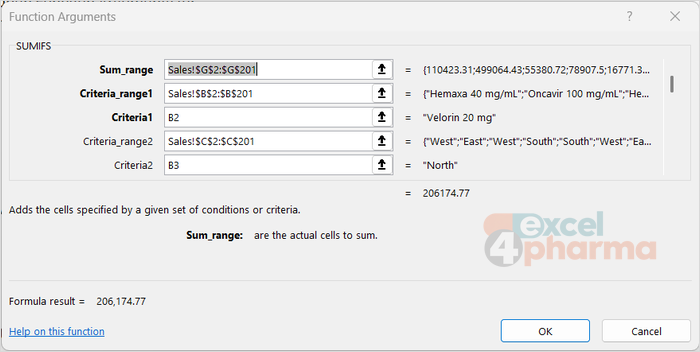
With the product typed in B2 and the region in B3 of the Summary sheet, net sales for that combination are:
=SUMIFS(Sales!$G$2:$G$201,Sales!$B$2:$B$201,B2,Sales!$C$2:$C$201,B3)
Excel reads every row of the sales table, keeps those where the product matches B2 and the region matches B3, and adds up their net sales.
Writing criteria
The criteria argument is more flexible than it looks, and most errors with this family come from it.
A criterion can be a value or a cell reference: "Hospital", 250, or B2. When the condition is not an equality, the comparison operator goes inside quotation marks: ">1000", "<>Retail", "<=0". Excel treats the whole condition as a piece of text that it interprets.
The tricky case is an operator combined with a cell. To sum orders above a threshold typed in B10, the criterion is not ">B10", which Excel would read as "greater than the text B10". The operator and the cell must be joined with the ampersand:
=SUMIFS(Sales!$G$2:$G$201,Sales!$E$2:$E$201,">="&B10)
The same technique handles date ranges, which are just two conditions on the same column. With a start date in B6 and an end date in B7:
=SUMIFS(Sales!$G$2:$G$201,Sales!$A$2:$A$201,">="&B6,Sales!$A$2:$A$201,"<="&B7)
Using the same column twice is perfectly legal, and it is the cleanest way to sum a period. Text criteria also accept wildcards: "Card*" matches every product name starting with Card.
One formula, a whole summary grid
Conditional sums become really powerful when combined with mixed references. A summary grid with products down column A (A13:A17) and regions across row 12 (B12:E12) can be filled with a single formula, written in B13 and copied to the whole grid:
=SUMIFS(Sales!$G$2:$G$201,Sales!$B$2:$B$201,$A13,Sales!$C$2:$C$201,B$12)
The data ranges are fully locked, because they must never move. $A13 locks the column, so every cell reads its product from column A; B$12 locks the row, so every cell reads its region from the header. Twenty cells, one formula, and the grid updates by itself when new transactions are added inside the ranges.

The rest of the family
The same logic, and almost the same syntax, works for counting, averaging and finding extremes.
COUNTIFS counts the rows that meet all conditions. It has nothing to add up, so it starts directly with the first pair:
=COUNTIFS(Sales!$B$2:$B$201,B2,Sales!$C$2:$C$201,B3)
AVERAGEIFS returns the average of the rows that meet the conditions, with the range to average in first position, as in SUMIFS:
=AVERAGEIFS(Sales!$E$2:$E$201,Sales!$B$2:$B$201,B2,Sales!$C$2:$C$201,B3)
Here it gives the average order size in units for the selected product and region. It is the same as SUMIFS divided by COUNTIFS, in one step. If no row meets the conditions, the average cannot be calculated and the function returns #DIV/0!.
MAXIFS and MINIFS return the largest and smallest values among the matching rows, for example the biggest and smallest single order:
=MAXIFS(Sales!$E$2:$E$201,Sales!$B$2:$B$201,B2,Sales!$C$2:$C$201,B3)
=MINIFS(Sales!$E$2:$E$201,Sales!$B$2:$B$201,B2,Sales!$C$2:$C$201,B3)
These two are more recent: they are available in Microsoft 365, Excel 2021 and Excel 2024, and in Excel 2019 for Windows, but not in older versions.
SUMPRODUCT: multiplying and adding in one step
SUMPRODUCT multiplies corresponding elements of two or more ranges and adds up the products:
=SUMPRODUCT(array1, [array2], [array3], ...)
Its most natural use is a weighted average. The simple average of the net prices in column F treats a 10-unit order and a 2,000-unit order as equally important, which is rarely what we want. The true average price received is total net sales divided by total units:
=SUMPRODUCT(Sales!$E$2:$E$201,Sales!$F$2:$F$201)/SUM(Sales!$E$2:$E$201)
SUMPRODUCT multiplies units by price row by row and adds the results, without any helper column. In the companion file the weighted and the simple average differ noticeably. Across the whole table the gap mostly reflects the product mix: a handful of large orders of an expensive product weigh far more in the weighted figure. Within a single product the effect is cleaner, and we will see it in a moment: large orders carry lower prices, so the weighted price is below the simple one. Either way, the simple average answers a question nobody asked.
SUMPRODUCT as a conditional sum
Before SUMIFS existed, SUMPRODUCT was the standard way to sum with several conditions, and it still has a few tricks that SUMIFS cannot do. The idea is that a condition applied to a range, such as Sales!$B$2:$B$201=B2, produces a list of TRUE and FALSE values. Multiplied by a number, TRUE becomes 1 and FALSE becomes 0. With the product in B2 and the region in B3 of the SUMPRODUCT sheet:
=SUMPRODUCT((Sales!$B$2:$B$201=B2)*(Sales!$C$2:$C$201=B3)*Sales!$G$2:$G$201)
The two conditions multiplied together give 1 only where both are true, so only those rows' net sales survive. The result is identical to the SUMIFS above.
Where SUMPRODUCT shines is OR logic, which SUMIFS cannot express in a single formula. To sum the sales of rows in the selected region or in the channel typed in B4:
=SUMPRODUCT(((Sales!$C$2:$C$201=B3)+(Sales!$D$2:$D$201=B4)>0)*Sales!$G$2:$G$201)
Adding the two conditions gives 1 when either is true, but 2 when both are true. The >0 test turns every positive value back into a single TRUE, so a row that meets both conditions is counted once and not twice. Leaving it out is a classic error that silently double counts.
And it can combine conditions with a weighted calculation in one go, such as the weighted average price of a single product:
=SUMPRODUCT((Sales!$B$2:$B$201=B2)*Sales!$E$2:$E$201*Sales!$F$2:$F$201)/SUMIFS(Sales!$E$2:$E$201,Sales!$B$2:$B$201,B2)
Next to it, =AVERAGEIFS(Sales!$F$2:$F$201,Sales!$B$2:$B$201,B2) gives the simple average price of the same product. For every product in the companion file the weighted price is lower, by around 5%: the volume discounts granted on large orders, invisible in the simple average.

Two practical notes. SUMPRODUCT needs all its ranges to have the same size, otherwise it returns #VALUE!. And although it accepts whole columns such as A:A, Microsoft advises against it: Excel would multiply more than a million rows per column, and large files slow down noticeably. Exact ranges, or a table that grows automatically, are the better choice.
Which one to use
For sums, counts and averages with AND conditions, the IFS family is the clear choice: faster, easier to read and to audit. SUMPRODUCT remains the right tool for weighted calculations and for OR conditions, and it is worth recognizing because many existing files are full of it.
Common mistakes
- Mixing up the argument order of SUMIF and SUMIFS. In SUMIFS the range to sum comes first.
- Ranges of different sizes. In SUMIFS every criteria range must have the same shape as the sum range; otherwise Excel returns #VALUE!.
- Writing
">B10"instead of">="&B10. The first compares with the text "B10" and silently returns zero. - Codes stored as text in one place and as numbers in another. The criterion 1001 does not match the text 1001, and the total comes out short.
- AVERAGEIFS on a combination with no data. The result is #DIV/0!; in a report, guard it with IFERROR or check the count first.
- OR logic in SUMPRODUCT without the
>0test. Rows that meet both conditions are counted twice.
Companion file
Illustrative data only. Not a decision tool.For further reading
- SUMIFS function - Microsoft Support
- MAXIFS function - Microsoft Support
- SUMPRODUCT function - Microsoft Support