
Dynamic Named Ranges and Dynamic Charts
The problem
Most names are static. ListPrice refers to one cell, and always will. Their strength is predictability, and their limit is that they know nothing about the data. A chart built on A1:B25 stops at row 25 when the series reaches row 26. A name for the list of months does the same. The common workaround is to cover a generous range, say 10,000 rows, and let the blank cells be. It works for a formula, but a chart then plots thousands of empty points and squeezes the real data into a corner.
A dynamic name solves the problem. Its definition is not a fixed address but a formula that calculates an address from the data: how many rows are filled, where a date falls, what the user typed in an input cell. Wherever the name is used, in a formula, a drop-down list or a chart series, the range follows. The source ranges become an accordion.
The examples use the companion file W04_Dynamic_Ranges.xlsx. The Data sheet has 24 months of illustrative net sales in A1:B25. Window holds the inputs and the definitions of the names, and Checks tests each name against a plain formula.
A range that grows with the data
The first pair of names covers all the data, whatever its length:
Dyn_Dates  =OFFSET(Data!$A$1,1,0,COUNT(Data!$A:$A),1)
Dyn_Sales  =OFFSET(Data!$B$1,1,0,COUNT(Data!$A:$A),1)
OFFSET starts from the header cell, moves one row down to reach the first record, and returns a block whose height is COUNT of column A and whose width is one column. The function and its arguments are covered in the article on dynamic references. COUNT counts numbers, and dates are numbers, so the header is not counted and neither is a text note placed in the column. COUNTA would count both and the range would run past the data.
Select the name in any formula to see it work: =ROWS(Dyn_Dates) returns 24 and =SUM(Dyn_Sales) returns 22,362.5. Type Jan-27 in A26 and any value in B26 and the two results become 25 and the new total, with nothing else changed. A chart that uses the names will draw the extra point in the same way.
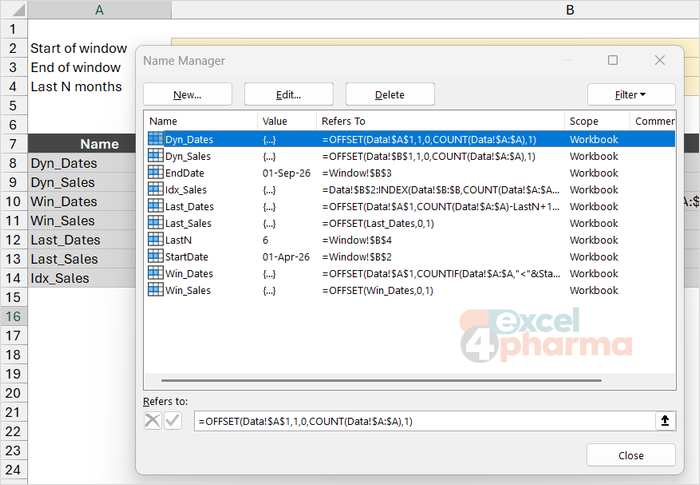
Excel offers no help when you type a formula in the Refers to box of a name. There is no colored range, no tooltip and a mistake gives only a name that returns an error. The reliable method is to build the formula in a cell first, see that it returns what you expect, and then paste it into the name. For a long definition, break it into several names and let each use the one before it. The file does this: Win_Sales is defined from Win_Dates.
A window between two dates
The second case lets a reader decide which part of the series to see. Two input cells hold the start and the end, named StartDate and EndDate (01-Apr-26 and 01-Sep-26). The window is a name that finds the first row and counts the rows:
Win_Dates  =OFFSET(Data!$A$1,COUNTIF(Data!$A:$A,"<"&StartDate)+1,0,
            COUNTIFS(Data!$A:$A,">="&StartDate,Data!$A:$A,"<="&EndDate),1)
Win_Sales  =OFFSET(Win_Dates,0,1)
COUNTIF counts the dates before the start: 15, from January 2025 to March 2026. The +1 skips the header, so OFFSET begins 16 rows below A1, at row 17. COUNTIFS counts the dates between the two limits, inclusive. The concatenation "<"&StartDate works because a date is a number: Excel evaluates it as "<46113". The result is a window of 6 months, April to September 2026, with net sales of 7,281.9. Win_Sales is the same block shifted one column to the right.
Change StartDate or EndDate, and the dates, the sums and any chart move with them. The data must be in ascending date order, because the window is a contiguous block.
A caution comes from a common alternative. The start row can be found with MATCH(StartDate,Data!$A:$A,1), which returns the position of the last date that is not later than the start. With a header row, that position is the row of the start date itself, and adding 1 to move to the next row skips the start. The Checks sheet shows it in B13:B15: the COUNTIF method gives row 17, the MATCH method row 18, one row lost. If the start date is not in the list, for example 15-Mar-26, the two agree. Counting the earlier dates is the safer way, since it does not depend on the start falling between two records.
The third pair of names takes the last N months, N being an input (6):
Last_Dates  =OFFSET(Data!$A$1,COUNT(Data!$A:$A)-LastN+1,0,LastN,1)
Last_Sales  =OFFSET(Last_Dates,0,1)
Their total is 8,127.5. The Checks sheet compares each name with a plain formula that does not use it, SUMIFS for the window and an INDEX range for the last N, and all the tests show "Yes".
A chart that follows the name
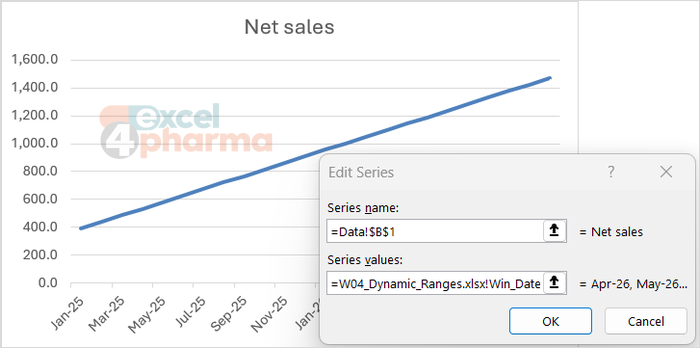
A chart series can read a name instead of cells. Build an ordinary line chart on the Data sheet, then right-click it, choose Select Data, select the series and click Edit. In the Series values box, delete the range and type the name with the workbook in front, not the sheet:
=W04_Dynamic_Ranges.xlsx!Win_Sales
Do the same for the Axis labels, with Win_Dates. Excel does not let you pick a name by clicking: the workbook name and the exclamation mark must be typed, and the name must have workbook scope. From then on, changing the dates in Window redraws the chart for the new period, and typing new data under the series extends it. The same pair of names can feed a table of the window, a sum or a statistic.
A chart that only needs to grow is simpler with a table. When the source is a table, a chart built on its columns expands with it, with no names to define, as described in the article on structured tables. Dynamic names are for the cases a table cannot do, such as a window or a rolling last N.
OFFSET or INDEX
OFFSET is volatile. Excel recalculates it at every change in the workbook, even one unrelated to its inputs. A few names cost nothing, and hundreds in a large model slow it down. INDEX does the same without being volatile. The first block can be written with INDEX as a range from the first record to the last:
Idx_Sales =Data!$B$2:INDEX(Data!$B:$B,COUNT(Data!$A:$A)+1)
The colon joins two references, the cell B2 and the one INDEX returns, into a range. Idx_Sales gives the same total, 22,362.5, and appears in the Checks sheet. For a window or a last N, INDEX works the same way with two INDEX calls. OFFSET is easier to read, and INDEX is easier on the workbook. A rule of thumb is to use OFFSET while building, and INDEX when the name will be used many times.
Other uses
Dynamic names are not only for charts. A name can supply the source of a drop-down list that changes with another selection, as the article on data validation shows. It can choose the column that SUMIFS adds: with a name that points to column B or column C according to an input cell, the same formula sums one product or the other. And it can document a model's key ranges with a name that explains them.
Common mistakes
- Counting with COUNTA when the column holds a header or notes, and getting a range one row too long.
- Leaving blank rows in the middle of the data. COUNT then counts fewer rows than the block spans.
- Using a window formula on data that are not sorted by date.
- Finding the start row with MATCH and a header row, and losing the first record.
- Typing a name in a chart series without the workbook name in front.
- Giving a name worksheet scope and then using it in a chart.
- Writing a long definition in the Refers to box without testing it in a cell first.
- Filling a workbook with volatile names that are used thousands of times.
Companion file
Illustrative data only. Not a decision tool.For further reading
- Define and use names in formulas - Microsoft Support
- OFFSET function - Microsoft Support
- Use the Name Manager in Excel - Microsoft Support