
Importing Text Exports: Fixed Width, Delimited and Locale
The problem
Three systems, three exports. The ERP produces a report file with columns aligned by spaces and a few lines of preamble. The CRM gives a semicolon-separated file in which decimals use a comma. A logistics partner sends a tab-separated text file in US format. All three land in a shared folder as text, and all three need to become clean columns of dates, codes and numbers. Opened by double-click, each comes out a little wrong: dates swapped, a quantity of 1.250 read as one point two five, a negative value left as text because the minus sign sits at the end.
Most pharma data work begins with an export, so the first skill is not formulas but getting text into cells without damaging it. This article covers the three layouts, the settings that decide how numbers and dates are read, and the formulas that repair what the import left behind.
Short theory
A text file has no cells, only characters. A program that reads it must decide where each value starts and ends, and what a value means.
There are two ways to find the boundaries. In a delimited file a character separates the fields: a comma, a semicolon, a tab. In a fixed-width file each field occupies a defined number of positions, padded with spaces, and the boundaries are positions in the line.
Meaning depends on the locale, the set of conventions for the decimal separator, the thousands separator and the order of day, month and year. In the United States, 1,250.75 is one thousand two hundred fifty and three quarters. In most of continental Europe the same quantity is written 1.250,75. A date written 03/04/2026 is 4-Mar-26 for an American reader and 3-Apr-26 for a European one. Nothing in the file says which convention applies. The reader has to know, and tell Excel.
Steps in Excel
Fixed-width reports
The companion folder includes D04_ERP_fixed_width.txt: three preamble lines, then a header line and the data, with fields of widths 10, 24, 6, 10, 9 and 13 characters. To bring it in, use Data, From Text/CSV, which opens a preview. For a layout this irregular, the older wizard gives more control, and it can be enabled in File, Options, Data, under Show legacy data import wizards, by ticking From Text (Legacy). After enabling it, the command appears under Data, Get Data, Legacy Wizards.
In the wizard:
- Step 1: choose Fixed width and set Start import at row to skip the preamble (here row 4).
- Step 2: Excel proposes break lines. Click to add a break, double-click to remove it, drag to move it. Check that no break cuts through a value.
- Step 3: assign each column a Column data format. Leave codes with leading zeros as Text; mark dates and give the order, for example Date: DMY; mark numbers as General.

The Raw Lines sheet in the companion file shows the alternative: paste the raw lines into column A and cut them with formulas. The start positions and widths are in a small table, J1:L7 (field, start, width), and the formulas in C:H use MID and TRIM, for example for the first field:
=TRIM(MID($A3,$K$2,$L$2))
The advantage is that the cuts are visible and repeatable: next month, paste the new file over the old one and the columns follow.
Delimited files
The file D04_CRM_semicolon.csv uses semicolons and decimal commas. The extension .csv suggests commas, but the character that actually separates the fields depends on the system that wrote the file. A European export uses a semicolon because the comma is the decimal separator.
Use Data, From Text/CSV. The preview shows the File Origin (the character encoding), the Delimiter and a guess for the data types. If accented characters appear garbled, change the origin to 65001: Unicode (UTF-8). Choose the delimiter that makes the columns line up. Then use Transform Data if you want to fix the types before loading, or Load to import as it stands.
A faster alternative for text already pasted into a column is Data, Text to Columns, which offers the same two modes, delimited and fixed width, and the same step for column formats. It overwrites the cells to the right of the selection, so make sure they are empty.
The tab-separated US file
D04_Shipments_tab_US.txt uses tabs, a period as decimal and a month-first date. Tab is the safest delimiter for pharma text, since drug names, addresses and comments often contain commas and semicolons but rarely tabs. The settings are the same as before, with one difference: the import must read the dates as month-day-year.
Locale: decimals, thousands and dates
The central issue is that the same text yields different numbers depending on the setting.
In the wizard, step 3 has an Advanced button for the Decimal separator and the Thousands separator of the file. Setting them to the file's convention, comma and period for the CRM export, makes 1.250,75 become 1,250.75 in a US-configured Excel. The setting describes the file, not the computer.
In a formula, the same job is done by NUMBERVALUE, which takes the text, the decimal separator and the thousands separator:
=NUMBERVALUE(D5,",",".")
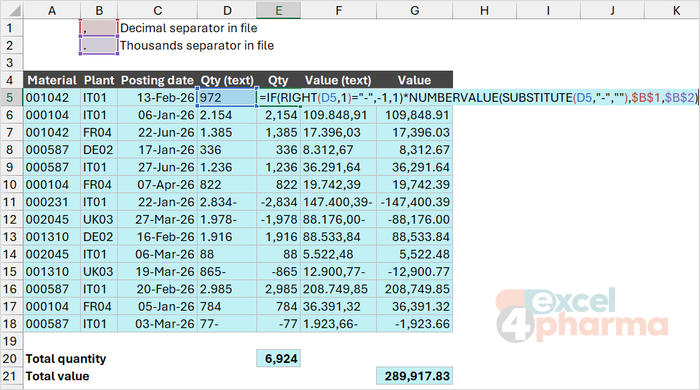
In the companion file, Clean has the two separators in input cells (B1 for the decimal separator, B2 for the thousands separator), so a single change adapts the whole column to another source.
Dates are the most dangerous. A text such as 03/04/2026 is valid in both orders. The Locale sheet shows a safe way to handle it: it splits the text into its three parts and rebuilds the date with DATE in the order you declare, then checks that the month is between 1 and 12. When a day-first file is read month-first, any date with a day above 12 produces an impossible month, which is a quick detector: a test cell counts such cases. The rule is simple: never let Excel guess the order of a date; state it.
Trailing minus signs
Some mainframe and ERP exports write negative numbers with the sign at the end: 1,250.75-. Excel reads this as text. The Clean sheet shows the repair:
=IF(RIGHT(D5,1)="-",-1,1)*NUMBERVALUE(SUBSTITUTE(D5,"-",""),$B$1,$B$2)
The formula tests the last character, removes the minus sign, converts the text to a number and multiplies by -1 when the sign was present. Newer versions of the wizard also offer, under Advanced in step 3, a Trailing minus for negative numbers option, which does the same at import time. The formula remains useful when the data is pasted rather than imported.
Codes with leading zeros
Product and customer codes such as 00871 lose their leading zeros if Excel reads them as numbers. Set the column to Text in the wizard. In a formula, TEXT(A2,"00000") restores the zeros of a code that was already damaged, as long as you know its length.
Making the import repeatable
Importing through From Text/CSV creates a query. The next time the file changes, Data, Refresh All reads the new content with the same settings. Point the query to a fixed folder and file name, or to a folder with a naming convention, and the monthly update stops being manual work. For the legacy wizard, the import is a static copy: you have to repeat the steps.
Common mistakes
- Double-clicking a CSV and trusting the result. Excel applies the locale of the computer, which can swap dates and misread decimals without a message.
- Choosing a delimiter by the file extension. The extension .csv does not tell you which character separates the fields.
- Importing codes as General. The leading zeros are gone before you see them.
- Pasting into a column to the left of data and running Text to Columns, which overwrites the neighbors.
- Leaving dates for Excel to guess. Declare the order, or rebuild the date with DATE.
- Cleaning a trailing minus with Find and Replace. The text stays text; convert it to a number as well.
Companion files
Illustrative data only. Not a decision tool.For further reading
- Import or export text (.txt or .csv) files - Microsoft Support
- Text to Columns wizard - Microsoft Support
- NUMBERVALUE function - Microsoft Support