
Shapes, Images and WordArt
The problem
A report is read before it is understood. A colored band with the name of the product, an arrow pointing at the number that matters, a logo that is clean and not a gray rectangle with jagged edges: these small objects make the difference between a worksheet that looks like a calculation and one that looks like a document. They also cause a particular kind of misery. The logo that covers the first column after someone inserts a row, the shape that stretches when a column is widened, the text box that slides off the page: all are the result of one thing, objects that nobody told how to behave.
This article covers the objects you can place on a sheet, how to format them, and above all how to control what they do when the cells underneath them change. The companion file, G06_Shapes_Images.xlsx, carries a small fictional logo, a reference sheet and a step-by-step exercise, because shapes themselves cannot be created from outside Excel.
What an object is
An object is anything on a worksheet that does not live in a cell: a picture, a shape, an icon, a text box, a WordArt, a SmartArt diagram, a chart. Objects float above the grid and are positioned by coordinates, though Excel also remembers which cells they sit on, which is the source of most of the trouble mentioned above.
A chart is a good example of how this works. It is linked to the data and redraws itself when they change, which is why it is practical, but technically it is an assembly of simpler objects: columns are rectangles, a line chart is a set of segments, a pie chart is a circle and some lines. Shapes can be used to draw anything a chart does, and then lose the link with the data. A curiosity worth trying: copy a chart in Excel, paste it into PowerPoint with Paste Special > Picture (Enhanced Metafile), then choose Group > Ungroup twice on it. The chart turns into the pieces it was made of.
Inserting and the Format pane
Insert > Illustrations offers Shapes, Pictures, Icons and SmartArt; Insert > Text offers Text Box and WordArt. Click an object and the contextual tab Shape Format or Picture Format appears. For anything beyond the presets, select the object and press Ctrl+1: the Format pane opens on the right, and it is the same pane for shapes, pictures, text boxes and charts, with the same logic. Its sections are:
- Fill & Line, for the interior and the outline.
- Effects, for shadow, reflection, glow and soft edges.
- Size & Properties, for dimensions and the behavior of the object on the sheet.
- Picture, for brightness and contrast, only when the object is a picture.
- Text Options, for the text inside a shape or a text box.
The pane applies changes immediately, without a button to confirm, so you can try, look and undo with Ctrl+Z.
Fill and line
Fill types
Under Fill the choices are: No fill, Solid fill, Gradient fill, Picture or texture fill and Pattern fill.
- Solid fill takes a color and a transparency. A translucent shape laid over cells lets the numbers show through, which is a good way of highlighting a block, but check it on paper: not every printer reproduces transparency well.
- Gradient fill is a progression from one color to another, with a type (linear, radial, rectangular, path) and an angle. A custom gradient is made of gradient stops: each stop has a position along the band, a color, a transparency and a brightness. To go from dark gray to orange to light blue you need three stops, one per color; use Add gradient stop and Remove gradient stop to manage them. Transparency here belongs to the stop and not to the whole fill, so a gradient can fade out toward one end.
- Picture or texture fill uses an image as the interior of a shape, so a photograph can be cropped into a circle, for instance. Rotate with shape decides whether the image turns when the shape does.
- Pattern fill uses stripes, dots or checks in a foreground and a background color. It is useful to tell series apart on a black-and-white printout. A curiosity: pattern fills disappeared in Excel 2007 and returned in Excel 2010.
Lines
The outline has its own color, transparency, width, dash type, cap and join types, and it can take a gradient as well. A thin line in a color slightly darker than the fill gives a more refined look than the default dark outline.
Effects
Shadow is the effect worth learning, because a well-set shadow makes a shape look like a card, while a badly set one looks like 1998. Start from a Presets shadow: inner, outer or perspective. Then adjust Color (black is nearly always right), Transparency (a shadow is translucent by nature; 50% or more keeps it discreet), Size, Blur (real shadows have soft edges), Angle and Distance. Small numbers are best: a modest distance and a generous blur.
Reflection, Glow and Soft Edges work along similar lines and have presets that need no adjustment. Soft edges fade the outline of a picture and help it blend into the page. All of this is a matter of restraint: one effect, if any, per object.
Behavior on the sheet
Under Size & Properties, the Size group sets height, width and rotation. Lock aspect ratio makes a change in height produce a proportional change in width, so a logo does not get squashed.
The Properties group is where objects are tamed. The Move and size with cells option makes an object stretch when columns are widened or rows are inserted through it, Move but don't size with cells moves it with the cells but keeps its dimensions, and Don't move or size with cells pins it to the page. The default for most objects is the first one, which is why logos get squashed. For a logo or a title block, choose the second or the third. Two check boxes below deserve a mention: Locked, which protects the object when the sheet is protected, and Print object, which decides whether it appears on the printout, useful for an annotation that is meant for the screen only.
Alternative text
Every picture, chart or shape that carries information needs alt text, a short description of what the object shows. Microsoft's article describes its purpose: it lets people who use screen readers know what an image conveys. Open the Alt Text pane by right-clicking the object and choosing View Alt Text, and write a sentence or two. For a purely decorative object, such as a border line, select Mark as decorative instead. It is sometimes said that alt text only matters when a sheet becomes a web page. It is an accessibility feature of the Office file itself, and it applies wherever the file is read with assistive technology.

Pictures
Pictures are fills
A picture is not very different from a shape filled with an image, and many shape options apply to pictures too: shadows, soft edges, borders and a crop to a shape. Picture Format > Crop > Crop to Shape gives a rounded or circular picture in two clicks. The Picture section of the Format pane adjusts brightness and contrast, and the Color menu offers saturation, tone and recoloring presets such as sepia or grayscale. Artistic effects exist as well but give no control over the details and rarely belong in a worksheet.
Making a logo transparent
A logo arrives with a solid background, often white or black, that looks wrong on a colored page. There are two ways to get rid of it.
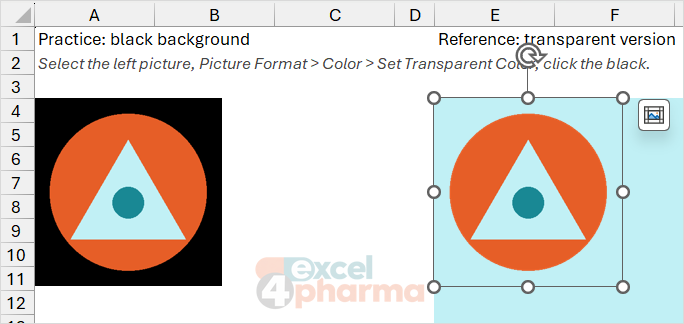
Set Transparent Color works on uniform backgrounds. Select the picture, choose Picture Format > Color > Set Transparent Color and click the color to remove. It only works well when the color is perfectly uniform: a JPEG, with its subtle noise, leaves a halo of nearly-black pixels. If the command is missing in your version of Excel, it can be added to the Quick Access Toolbar from File > Options > Quick Access Toolbar by choosing commands from the Picture Tools tab.
Remove Background is the choice for photographs or irregular backgrounds. Select the picture and choose Picture Format > Remove Background. Excel marks in magenta what it will remove; use Mark Areas to Keep and Mark Areas to Remove with the pencil to correct the selection, then Keep Changes. Discard All Changes undoes everything. As the Microsoft article indicates, the tool needs some patience to produce a clean result.
The Logo sheet of the companion file has the same fictional logo twice: on a black background, for practicing, and already transparent, as a reference for the result.
Text boxes and WordArt
In recent versions of Excel there is no real difference between a text box and a WordArt. The two are inserted with different buttons and the second starts with a decorative style, but both are text in a shape and accept the same effects as any shape. Insert a WordArt from Insert > Text > WordArt and choose a starting style.
Text in a shape is formatted in Text Options in the Format pane: fill and outline of the letters, effects, and the Text Box section with alignment, margins and what happens when the text does not fit. One feature is not in the pane: deforming the text, making it follow an arc or a wave. That is in the contextual tab, Shape Format > WordArt Styles > Text Effects > Transform, and it applies to any text, a simple text box included. Use it for a title, and in moderation: transformed text is hard to read at length.

Common mistakes
- Leaving the default object behavior (move and size with cells) on a logo or a title block.
- Stretching a picture by dragging a side handle instead of a corner. Hold the aspect ratio, or lock it.
- Using Set Transparent Color on a photograph or a JPEG with noisy edges. Use Remove Background.
- Heavy shadows, reflections and glows all together. One subtle effect is enough.
- Forgetting alt text on a picture that carries information, or mark it as decorative if it does not.
- Setting an object to print when it should not, or the reverse. Check Print Preview.
- Covering cells with translucent shapes that do not print as they appear on screen.
Companion file
Illustrative data only. Not a decision tool.For further reading
- Remove the background of a picture in Office - Microsoft Support
- Add alternative text to a shape, picture, chart, SmartArt graphic, or other object - Microsoft Support