
Advanced Filter
The problem
A regulatory affairs analyst needs the supply records of two periods, each with its own minimum value, leaving out one product, plus any exceptional order above a fixed amount whatever the date. The AutoFilter drop-downs cannot express this: they combine columns only with AND, they allow two conditions per column, and they cannot say "this period with this threshold, or that period with that threshold". The rule has the shape of a small logical expression, and Excel has a tool for that which most users never open: the Advanced Filter.
The tool is old, and in Microsoft 365 many of its jobs can be done with the function FILTER. It remains worth knowing for three reasons: it works in every version of Excel, it can copy the result to another place without a formula, and the same criteria layout drives the database functions such as DCOUNT and DSUM.
Short theory
The Advanced Filter reads its rule from a criteria range: a small block of cells placed away from the data. The first row of the block holds column headers that must match the headers of the list exactly. The rows below hold the conditions. The layout carries the logic:
- Conditions in the same row are joined by AND.
- Conditions in different rows are joined by OR.
So a block with two rows reads "row 1 passes, or row 2 passes", and within each row every cell must pass. The same header can appear more than once in the header row, which is how you set two conditions on one column in the same row, such as a date that is after one limit and before another.
A condition cell can hold a value ("Gastrel"), a comparison (>=25000), or a text pattern with wildcards. A blank cell in a criteria row means "no condition". And there is a rule to remember: a criteria range must never contain a completely blank row, because a blank row means "everything passes".
Steps in Excel
The companion file has a sheet How to use with the same steps as this article, and a sheet Expected Result with the rows each filter must return. You do not have to build anything: the criteria are already in the sheet Advanced Filter. What you run yourself is the Advanced command, twice.
A two-period rule with a threshold
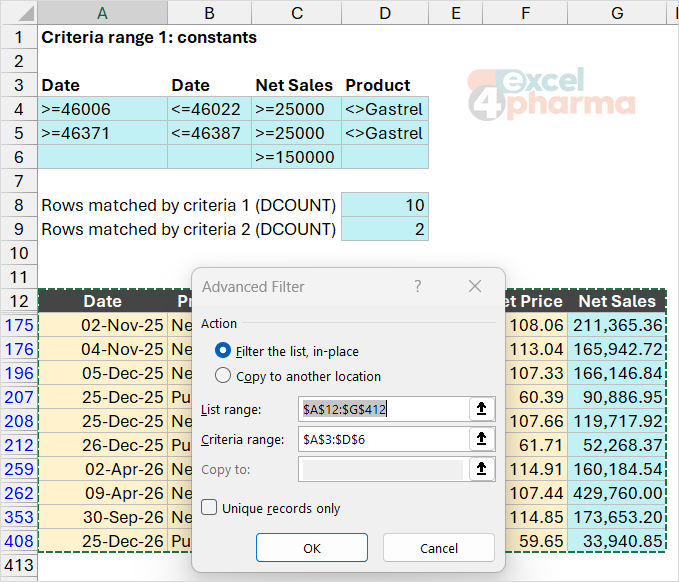
The companion file keeps the criteria range 1 in A3:D6 of the Advanced Filter sheet, with the headers Date, Date, Net Sales and Product. The parameters sit in M3:M11, so the rule can be changed without editing the criteria cells. Row 4 is the first period, row 5 the second:
- A4 holds
=">="&M3, the first date of period 1. - B4 holds
="<="&M4, the last date of period 1. - C4 holds
=">="&M7, the minimum net sales. - D4 holds
="<>"&M9, which excludes the product named in M9, here Gastrel.
Row 5 repeats this with the dates and threshold of period 2. Joining a comparison operator to a cell with & turns a parameter into a condition, and no number is typed inside the criteria themselves.
A third row, row 6, adds the exceptional order: it carries only C6, =">="&M8 (150,000), and leaves date and product blank. Because it sits in a different row it is an OR: any record at or above 150,000 passes, whatever the date.
The list itself is A12:G412 with headers in row 12. To run the filter, click a cell in the list, then on the Data tab choose Advanced in the Sort & Filter group. In the dialog:
- Action: choose Filter the list, in-place to hide rows, or Copy to another location.
- List range: A12:G412.
- Criteria range: A3:D6, headers included.
- If copying, Copy to takes the top-left cell of the destination; a header row there makes the extract cleaner.
Click OK. In place, the non-matching rows disappear as with AutoFilter, and 10 rows stay visible. When copied, the original list stays as it was and a new block appears with the matching rows only. The second way is often the better one: you keep the source untouched and the result is a plain range you can send. Before the next run, choose Data > Clear in the same group, so that all the rows are visible again.
Counting the result before running it
A filter you cannot verify is a risk. The database function DCOUNT takes the same list and the same criteria range and returns how many rows pass, without running the filter. In D8:
=DCOUNT($A$12:$G$412,"Net Sales",$A$3:$D$6)
The answer in the companion file is 10 rows, six of which are the exceptional orders. If the filter returns a different number of rows, the criteria range was entered wrongly: the usual cause is a header that does not match the list header exactly. The family has siblings: DSUM, DAVERAGE, DMAX, DMIN and DGET, all with the same three arguments (list, field, criteria). DGET returns a single value and gives an error if the match is not unique, which makes it a strict lookup.
A criterion that is a formula
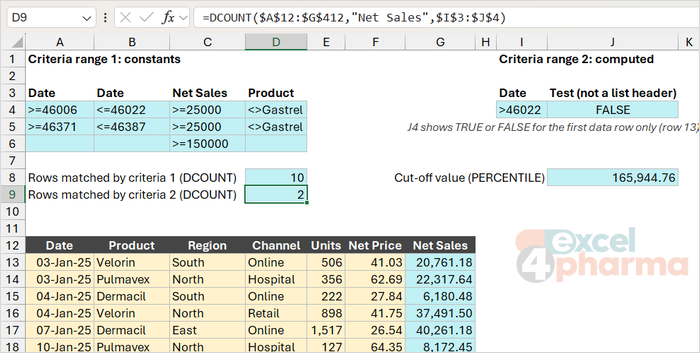
The second criteria block, I3:J4, shows the feature that sets the Advanced Filter apart: a criterion can be a formula that returns TRUE or FALSE. The rules are narrow, and each has a reason.
The header cell above the formula must be blank or carry a name that is not a header of the list. In the file it reads Test, which is not a column of the list, and that is deliberate: if the label were a real header, Excel would read the formula as an ordinary condition on that column and return nothing.
The formula must refer to the first data row of the list with a relative reference, and to everything else with absolute references. Excel evaluates the formula once for every record, moving each relative reference down one row at a time, as if the formula were copied down the list. A reference to a parameter cell such as M10 written without dollar signs would be tested against M10 for the first record, M11 for the second, M12 for the third, and so on. The filter then returns nothing, and so does the DCOUNT, without any warning. In J4:
=G13>=$J$8
Here G13 is the first data row of the Net Sales column, and it moves down with the record. J8 holds the cut-off, =PERCENTILE($G$13:$G$412,$M$10), and it is absolute, so every record is compared with the same number. With M10 = 0.99 this keeps the rows at or above the 99th percentile of net sales, a cut-off of 165,944.76 in the file. No fixed threshold is typed in anywhere: when the list changes, the cut-off moves with it.
Combined with column I, which holds a date condition built as =">"&M11, the block selects the exceptional orders after a given date. In the file, DCOUNT with this block gives 2 rows, and running Advanced with I3:J4 as criteria range leaves the same 2 rows visible. Note that the formula cell J4 displays TRUE or FALSE, not the formula, and shows the result for the first record only. It looks odd the first time.
Unique records
The Advanced Filter has one more job: ticking Unique records only removes duplicate rows from the result. With the criteria range left empty, the tool copies a list without duplicates to another place. Today UNIQUE does this in a formula, but the Advanced Filter still works as a quick one-off, and it considers a row duplicate only if every selected column is equal.
Wildcards and exact matches
A text condition such as Neurolin is not an exact match: Excel treats it as "begins with Neurolin", so Neurolin XR passes as well. For an exact match type ="=Neurolin" in the cell. The wildcards ? and * work as in AutoFilter; to match a literal asterisk, put a tilde before it: ~*.
Why the layout is so strict
The Advanced Filter gives no warning when it fails: a wrong header returns nothing, or everything. The checks that save time are short. Copy the header row of the list and paste it as the header row of the criteria block, so the names match exactly. Keep the criteria block away from the list, on rows above it, so that the list can grow downwards without colliding. Never leave a blank row inside the criteria range. And use DCOUNT to check the number before you trust the extract.
Common mistakes
- A header in the criteria range that differs from the list header by a space or a letter. The filter returns no rows.
- A blank row in the criteria range, which turns the rule into "everything passes".
- Using the list header above a formula criterion. It must be blank or a name that does not exist in the list.
- Using an absolute reference to the first data row in a formula criterion. It must be relative, or every row is tested against the same cell.
- Using a relative reference to anything else in a formula criterion, such as a parameter cell. It moves down with every record and the filter returns nothing. Write
$M$10, notM10. - Running a second filter without clearing the first. Use Data > Clear between runs.
- Placing the criteria range below the list, where it is overwritten when the list grows.
- Expecting the result to update. The filter is a one-off action; run it again after the data change, or use
FILTERfor a live result.
Companion file
Illustrative data only. Not a decision tool.For further reading
- Filter by using advanced criteria - Microsoft Support
- Filter for unique values or remove duplicate values - Microsoft Support