
Debugging: Finding and Fixing Errors in VBA
The problem
Every macro that does something useful will, sooner or later, stop with a message nobody understands, or finish without a message and with the wrong numbers. The second case is the more dangerous one. A macro that reports a total of 7,450 when the true figure is 8,087 does not look broken: it looks like a result.
Debugging is the craft of finding, in a few minutes, the line that is wrong and the state of the data that made it wrong. VBA gives you tools for this that are more powerful than most users ever open: they let you run code one line at a time, stop it where you want, and look inside every variable while it runs. This article uses a workbook with five deliberately faulty macros, each paired with a corrected version, so you can break things safely.
Four kinds of mistake
A syntax error is a line that does not follow the rules of the language, such as a missing Then. The editor catches it as soon as you leave the line, and shows it in red.
A compile error is found when the module is analyzed, before anything runs. The most common one is a variable that was never declared, when the module begins with Option Explicit. That statement tells VBA to refuse any variable that has not been declared with Dim, so a mistyped name, total instead of totl, is caught at once instead of silently creating a new empty variable. Putting it at the top of every module is the cheapest debugging measure there is; to have the editor insert it by itself in new modules, switch on Require Variable Declaration under Tools > Options > Editor. It does not change modules that already exist. To force the analysis of the whole project without running anything, use Debug > Compile VBAProject.
A runtime error appears while the macro runs, because an operation that looked fine in the code is impossible with the data at hand: dividing by zero, adding text to a number, opening a sheet that does not exist. Excel stops and shows a message with a number.
A logic error is the last and the worst: the code is legal, nothing fails, and the answer is wrong.
When Excel stops
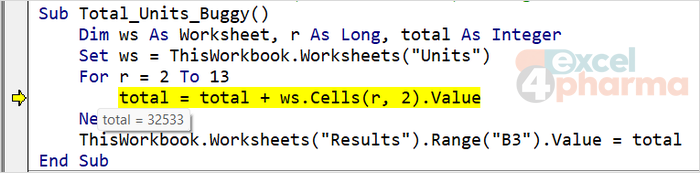
The sheet Units holds 12 months of units sold. Total_Units_Buggy adds them up, and when you run it from Alt+F8, Excel stops with the message Run-time error '6': Overflow. The dialog has the buttons End, Debug and Help. End ends the macro. Debug opens the editor with the offending line highlighted in yellow and the macro in break mode, which is where you want to be.
Sub Total_Units_Buggy()
    Dim ws As Worksheet, r As Long, total As Integer
    Set ws = ThisWorkbook.Worksheets("Units")
    For r = 2 To 13
        total = total + ws.Cells(r, 2).Value
    Next r
    ThisWorkbook.Worksheets("Results").Range("B3").Value = total
End Sub
Hover over total and r with the mouse: a small tooltip shows their current values. total holds 32,533 and r is 8, July, the seventh month. Adding its 6,144 units would give 38,677, above 32,767, the largest value an Integer can hold, and the line fails. The annual total is 64,249. The cure is the one seen in the article on cells: declare the variable As Long.
Before you edit the code, click Reset, the square button on the toolbar of the editor, to end the break mode. Editing a macro that is paused is possible, but the variables and the stack of calls from the interrupted run are still there, and they cause confusing errors in the next run.
Running line by line
The central tool of debugging is stepping. Click anywhere inside a macro and press F8: the first line is highlighted in yellow, and nothing has been executed yet. Each further press of F8, Step Into, executes the highlighted line and moves to the next. After every press, look at the sheet and at the variables. In Total_Units_Buggy, a few presses are enough to see total climb row by row to its limit.
The other commands of the Debug menu, and of the Debug toolbar that you can show with View > Toolbars > Debug, change how far one step goes.
- Step Into, F8, executes one line and, if the line calls another procedure, enters it.
- Step Over, Shift+F8, executes the line, including the whole called procedure, as a single step.
- Step Out, Ctrl+Shift+F8, runs the rest of the current procedure and stops where it was called.
- Run To Cursor, Ctrl+F8, runs until the line where the cursor is.
A yellow arrow in the left margin marks the next line to be executed. If you realize you went too far, Debug > Set Next Statement, Ctrl+F9, moves the arrow back so you can run a line again, though the effects of the first run on cells and variables stay.
Breakpoints
Stepping through a loop of 3,000 rows is not practical. A breakpoint tells VBA to run at full speed and stop at a chosen line. Click in the gray bar to the left of the code, or put the cursor on the line and press F9: a red dot appears and the line turns dark red. Run the macro with F5, and it stops there, in break mode. F5 again continues until the next stop, F9 on the same line removes the breakpoint.
A breakpoint can sit inside the loop on a line that is reached only in the interesting cases. Put it inside the If of a loop and the macro runs through all the rows in which the condition is false without a pause. Breakpoints are not saved with the file: they disappear when you close the workbook.
Looking inside: Locals, Watch, Immediate
The tooltip shows one variable at a time. The Locals window, open from View > Locals Window, shows every variable of the current procedure with its type and value, and refreshes after each step. Objects such as ws can be expanded to see their properties.
The Watch window follows the expressions you choose, and can do something more useful than just show them. Right-click a variable, choose Add Watch, and under Watch Type pick Break When Value Is True: with the expression total > 30000 on the corrected Total_Units, the macro stops by itself on the first row that crosses the threshold. Break When Value Changes stops on every change, and is the quickest way to find out which line is overwriting a variable it should not touch. Quick Watch, Shift+F9, shows the value of a selected expression once, for the moment.
The Immediate window, Ctrl+G, is a command line for VBA. While the macro is in break mode, type a question mark followed by an expression and press Enter:
? r
? total
? Worksheets("Units").Cells(5, 2).Value
The window replies with the value of each. It also runs statements: typing total = 0 changes the variable on the spot. And code can write to it with Debug.Print, which is how you leave a trail without stopping anything. The corrected Total_Units prints one line per row:
Sub Total_Units()
    Dim ws As Worksheet, r As Long, lastRow As Long, total As Long
    Set ws = ThisWorkbook.Worksheets("Units")
    lastRow = ws.Cells(ws.Rows.Count, 1).End(xlUp).Row
    Debug.Assert lastRow >= 2                           ' stops the macro here if the sheet is empty
    For r = 2 To lastRow
        total = total + ws.Cells(r, 2).Value
        Debug.Print "Row " & r & ": running total " & total
    Next r
    ThisWorkbook.Worksheets("Results").Range("B3").Value = total
End Sub
Debug.Assert is a breakpoint with a condition built into the code: it does nothing while the expression is True and suspends the macro on that line as soon as it is False. Here it protects against an empty sheet. The Call Stack, Ctrl+L or the Call Stack button, lists the chain of procedures that led to the current line, useful when a helper fails and you need to know who called it.

Four more bugs
The workbook has three more macros that stop with an error and one that does not.
Average_Price_Buggy adds the prices on the sheet Prices. It fails with Run-time error '13': Type mismatch on row 8: Hemaxa has no price yet, and the cell holds the text n/a. Adding text to a number is not possible. In Average_Price the line is protected by If IsNumeric(...) and the average is divided by the number of prices actually found, 9 and not 10. The buggy version also had the 10 written into the code, a fixed number that would have been wrong the day a product was added.
Shares_Buggy divides each segment's part by its total on the sheet Shares, and stops with Run-time error '11': Division by zero. The fourth segment, Mail order, has a total of zero. A detail worth knowing: VBA raises error 11 only when a non-zero number is divided by zero. Zero divided by zero raises error 6, Overflow, the same number as the Integer overflow above, so an error 6 is not always about the size of a variable. In Shares the division happens only when the total is not zero, and the segment is marked n/a otherwise. Notice that a real answer exists: for a segment with no total, "no share" is the honest result, not zero.
Read_Setting_Buggy ends with Run-time error '9': Subscript out of range. The code asks for a sheet called Setting, and the sheet is called Settings. Nothing in the code is illegal until the sheet name is looked up, which is why the compiler cannot warn you. The error number 9 appears whenever a sheet, a workbook or an array element does not exist, and the sheet name is the first suspect.
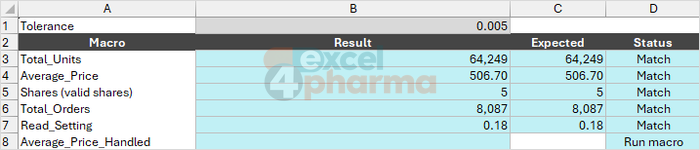
Total_Orders_Buggy gives no error at all. It reports 7,450 in Results!B6, and the status cell beside it says Check: the formula that sums the sheet Orders gives 8,087. The loop runs from row 2 to lastRow - 1 and never reads the last order. A logic error has no message to point to the line, so you find it by comparing with an independent result, and then by stepping with F8 and watching r in the Locals window: the last pass of the loop is the one before the last row. This is why every companion file of this site carries a formula check next to the macro result. A number that has not been cross-checked is a hope.
Handling errors in the code
You cannot prevent every runtime error, and you should not try: a missing file or a sheet renamed by a colleague is a fact of life. What you control is what the macro does about it. The first way is On Error GoTo, which sends VBA to a labeled section when an error occurs:
Sub Average_Price_Handled()
    Dim ws As Worksheet, r As Long, total As Double
    On Error GoTo Handler
    Set ws = ThisWorkbook.Worksheets("Prices")
    For r = 2 To 11
        total = total + ws.Cells(r, 2).Value
    Next r
    ThisWorkbook.Worksheets("Results").Range("B8").Value = "Average " & Format(total / 10, "#,##0.00")
    Exit Sub

Handler:
    ThisWorkbook.Worksheets("Results").Range("B8").Value = "Error " & Err.Number & " in row " & r & ": " & Err.Description
End Sub
The Exit Sub before the label is essential: without it, the handler would run after every successful run too. The Err object describes the last error: Err.Number is its code and Err.Description its message. Run it on the faulty data and Results!B8 reads Error 13 in row 8: Type mismatch, with the row, which is the information you need to repair the sheet. A handler can also clean up, restore settings, and tell the user in plain words what happened.
The second form is On Error Resume Next, which ignores the error and continues with the next line. It is dangerous when it covers a whole procedure, because it silently hides every problem; used on a single call, followed by an explicit check, it is a precise tool. One setting can switch both forms off without warning. Under Tools > Options > General, Error Trapping has three choices. With Break on All Errors the editor stops on every error, even inside On Error Resume Next or On Error GoTo, and the handlers never run. Keep it on Break on Unhandled Errors, the default, and use Break on All Errors only while hunting a bug that a handler hides. The setting belongs to the editor on your computer, not to the workbook.
Run_And_Log runs the five buggy macros one after the other and notes each failure on the sheet Error Log:
    On Error Resume Next
    Total_Units_Buggy
    Log_If_Error wsLog, nextRow, "Total_Units_Buggy"
    Average_Price_Buggy
    Log_If_Error wsLog, nextRow, "Average_Price_Buggy"
The helper tests the Err object, records the number and the description, advances the row counter and clears the error:
Private Sub Log_If_Error(ByVal ws As Worksheet, ByRef nextRow As Long, ByVal macroName As String)
    If Err.Number <> 0 Then
        ws.Cells(nextRow, 1).Value = macroName
        ws.Cells(nextRow, 2).Value = Err.Number
        ws.Cells(nextRow, 3).Value = Err.Description
        nextRow = nextRow + 1
        Err.Clear
    End If
End Sub
nextRow is passed ByRef, so that the counter advances in the caller too, the pattern from the article on subs and functions. Without Err.Clear the next check would find the same error again. After the run, the log lists four entries, with the numbers 6, 13, 11 and 9, and Total_Orders_Buggy is not in it, because it failed silently. On Error GoTo 0 at the end switches error handling off again.

A debugging routine
When a macro misbehaves, a sequence that rarely fails:
- Read the message and the number, and click Debug. The yellow line is where it failed, not necessarily where the cause is.
- Look at the values with the tooltip, the Locals window or the Immediate window. Which variable is not what you expect?
- If the cause is further back, set a breakpoint before the line, run again, and step with F8 from there.
- For loops, use a conditional watch, Break When Value Is True, instead of pressing F8 a hundred times.
- When it works, test it on the awkward cases that caused the bug: an empty list, a zero, a text in a number column, a sheet renamed.
- Compare the result with an independent calculation, a formula on the sheet or a manual total.
Common mistakes
- Skipping Option Explicit, so a misspelled variable becomes a new empty one.
- Declaring a running total As Integer, and hitting an overflow beyond 32,767.
- Reading the number the error message gives and not the line it highlights.
- Editing code in break mode without pressing Reset first.
- Using On Error Resume Next at the top of a procedure and forgetting it. The macro never fails and never works.
- Forgetting Exit Sub before the error handler.
- Leaving Error Trapping on Break on All Errors, so the error handlers never run.
- Not clearing the Err object after handling an error that the macro survives.
- Trusting a number because the macro finished without a message.
Companion files
Illustrative data only. Not a decision tool.For further reading
- Debug toolbar - Microsoft Learn
- On Error statement - Microsoft Learn
- Assert method (Visual Basic for Applications) - Microsoft Learn
- Trappable errors - Microsoft Learn
- Option Explicit statement (VBA) - Microsoft Learn