
Macro Security and Best Practice
The problem
A colleague sends a workbook with a macro that "updates everything in one click". You open it, and Excel shows a security warning and refuses to run the macro. Is Excel being overcautious? It is not. A macro is a program: it can do anything you can do on your computer, such as read your files, delete them, send e-mail or start other programs, and it does it with your permissions. That power is what makes macros useful, and it is why they are one of the oldest ways to spread malicious software.
There is a second problem on the other side of the table. The macros you write yourself are, one day, run by someone else, on data you have never seen, months after you wrote them. A macro that works only because its author remembers what it does is a liability of a different kind.
This article covers both sides: how Excel protects you from other people's macros, how to read code before you trust it, and how to write macros that others can trust.
Why macros are blocked
Since 2022, Microsoft 365 Apps on Windows block macros in files that come from the internet. Windows marks a file with a Mark of the Web, an invisible label saying that it came from an untrusted zone, when it is downloaded with a browser or saved from an e-mail attachment. Excel reads the label and, for a file from the internet zone, does not allow its macros to run: a message bar appears, and the only way forward is a deliberate act.
If you know the file and its sender, right-click it in File Explorer, choose Properties and, on the General tab, select Unblock. This removes the label, and the next time the file is opened the usual macro settings apply. Do it only for files you trust: it is you who is taking the decision, not Excel. Files saved in a Trusted Location skip the check altogether, which suits a folder that only you can write to and is a poor idea for a shared download folder. The mark exists only on drives formatted as NTFS, and the rule does not apply to Excel for the web or Excel on a Mac.
The companion files of this site follow the same logic: the macros come as a plain-text .bas file that you import yourself, so nothing runs until you have had the chance to read the code.
The Trust Center settings
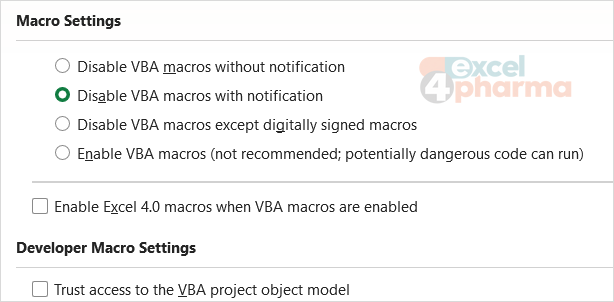
Under File > Options > Trust Center > Trust Center Settings > Macro Settings, Excel offers four choices. If the Developer tab is visible, Macro Security on that tab goes to the same place.
- Disable VBA macros without notification: macros are blocked and you are not told.
- Disable VBA macros with notification: macros are blocked, and a yellow bar offers to enable them for that file. This is the setting that lets you decide file by file.
- Disable VBA macros except digitally signed macros: macros signed by a publisher you trust run, all others are blocked or ask.
- Enable VBA macros (not recommended, potentially dangerous code can run): everything runs, with no question asked.
Two more entries on the same page matter for macros. Trust access to the VBA project object model is off by default, and it lets programs and macros read and change the VBA code of your workbooks: leave it off unless a tool you trust needs it. And a check box controls whether Excel 4.0 macros, an old macro language, are allowed.
The right setting for almost everybody is the second one, and the habit that goes with it is to read the yellow bar as a question: do I know where this file came from? Old guides describe other levels, Low, Medium and High, that belonged to much older versions of Excel; those names no longer appear.
File formats
Macros need a macro-enabled format. The workbook type with macros is .xlsm. A normal .xlsx file cannot hold VBA code: if you save a workbook with macros as .xlsx, Excel warns you and, if you go on, the macros are lost. The binary format .xlsb can hold macros, and is a more compact format for very large workbooks; a macro-enabled add-in is .xlam. Tools outside Excel read .xlsx and .xlsm easily, while .xlsb is understood by few of them.
For the companion files of this site, which are .xlsx, the procedure is always the same: File > Save As, choose the macro-enabled format, then import the .bas file into the VBA editor.
Signing your macros
A digital signature does two things: it shows that the code has not changed since it was signed, and it lets a user or an administrator trust macros from a given publisher without enabling everything. In the VBA editor, Tools > Digital Signature lets you choose a certificate for the project.
For personal use or testing, Office includes a tool, SelfCert.exe, that creates a self-signed certificate. Microsoft states the limits: Office trusts such a certificate only on computers where it has been added to the trusted store, so it is fine for your own machine and a few you manage, and not a way to distribute macros to others. Within a company, the IT department can issue certificates that all computers trust. A signature proves that the code was not altered after signing, not that its author is honest; and any change to a signed project removes the signature until it is signed again.
Read before you run
The most useful security habit costs nothing: read the code before you run it. You do not need to understand every line to see that a macro formatting a price list has no reason to delete files or start programs. Some keywords deserve a second look in code that you did not write. The companion file has a sheet, Red Flags, with twelve of them and a plain-language note on what each one can do. These are the main ones.
| Keyword | What it can do |
|---|---|
| Kill | Deletes files from disk |
| Shell | Starts other programs |
| CreateObject | Creates external objects: file system, scripting host, e-mail, web |
| SendKeys | Types keystrokes into whatever window is active |
| Environ | Reads system information such as the user name |
| Workbooks.Open, SaveAs | Opens and writes other files |
| Declare | Calls Windows functions outside VBA |
| Application.Run | Runs macros stored in other workbooks |
| Auto_Open | Runs by itself when the workbook opens |
A keyword is not proof of harm: plenty of legitimate macros open and save files. It is a reason to read that line and ask why. On Error Resume Next is on the list for a different reason: not security but quality, since it hides every error that follows.
The macro Scan_Code_For_Red_Flags does the first pass for you. The sheet Code to Review holds 32 lines of sample VBA as plain text, and the sheet is only data: nothing on it is ever executed. The macro takes each keyword of Red Flags and loops through every line looking for it with InStr, counting the hits and noting the first line:
    For k = 3 To lastKey
        hits = 0
        For i = 2 To lastCode
            If InStr(1, wsC.Cells(i, 1).Value, wsF.Cells(k, 1).Value, vbTextCompare) > 0 Then
                hits = hits + 1
                If hits = 1 Then wsF.Cells(k, 4).Value = i       ' first line where it appears
            End If
        Next i
        wsF.Cells(k, 3).Value = hits
    Next k
The nested loops are the ones from the article on loops, and vbTextCompare makes the search ignore case. After the run, each keyword of the sample has one hit, except On Error Resume Next with two and URLDownloadToFile with none, and column E checks every count with a SUMPRODUCT formula. To scan code of your own, paste it into column A of Code to Review, one line per row, and extend the formula range.

With AI. Assistants now write VBA on request, and much of it is good. The rules above do not change because the author is a machine: read it, run it first on a copy and on dummy data, and use the same red-flag scan. Ask the assistant to explain each line you do not follow. An assistant also knows only what you told it, so check the references to sheets, ranges and file paths against your own workbook before you run anything.
Best practice: the same macro, written twice
The companion file has two macros that give the same answer. Both fill Summary!B3:B6 with the net sales of four markets from the sheet Sales, and the status cells beside them show Match. The totals are 1,306,205.55, 1,438,978.91, 1,336,398.64 and 1,041,193.64.
Build_Summary_Bad looks like what a recorded macro or a rushed one produces:
Sub Build_Summary_Bad()
    Application.ScreenUpdating = False
    Sheets("Summary").Select
    Range("B3").Select
    ActiveCell.Value = Application.WorksheetFunction.SumIf(Sheets("Sales").Range("B2:B121"), "Market A", Sheets("Sales").Range("E2:E121"))
    Range("B4").Select
    ' ... the same for Market B, C and D
End Sub
It works today, and fails in at least five ways tomorrow. It selects cells and sheets, which makes it slow and dependent on what is on the screen. It has the data range B2:B121 and E2:E121 written in the code, so a 121st row is ignored without a word. The market names are written in the code, so a fifth market needs a new macro. If an error occurs, screen updating stays off and Excel appears frozen. And nobody who opens the module understands what it is for without reading all of it.
Build_Summary is the same job written to be trusted:
Sub Build_Summary()
    Const SALES_SHEET As String = "Sales"
    Const SUMMARY_SHEET As String = "Summary"
    Const FIRST_MARKET_ROW As Long = 3

    Dim wsS As Worksheet, wsM As Worksheet
    Dim lastSales As Long, lastMarket As Long, r As Long
    Dim wasUpdating As Boolean

    wasUpdating = Application.ScreenUpdating
    On Error GoTo Cleanup
    Application.ScreenUpdating = False

    Set wsS = ThisWorkbook.Worksheets(SALES_SHEET)
    Set wsM = ThisWorkbook.Worksheets(SUMMARY_SHEET)
    lastSales = wsS.Cells(wsS.Rows.Count, 1).End(xlUp).Row
    lastMarket = wsM.Cells(wsM.Rows.Count, 1).End(xlUp).Row
    wsM.Range("B" & FIRST_MARKET_ROW & ":B" & wsM.Rows.Count).ClearContents

    For r = FIRST_MARKET_ROW To lastMarket
        wsM.Cells(r, 2).Value = Application.WorksheetFunction.SumIf( _
            wsS.Range("B2:B" & lastSales), wsM.Cells(r, 1).Value, wsS.Range("E2:E" & lastSales))
    Next r

Cleanup:
    Application.ScreenUpdating = wasUpdating
    If Err.Number <> 0 Then MsgBox "Build_Summary stopped: " & Err.Description, vbExclamation
End Sub
Every difference is a habit worth adopting.
- Option Explicit at the top of the module, as in the article on debugging.
- Constants, written in capitals, for the names and positions that would otherwise be buried in the code. If the sheet is renamed, one line changes.
- Object variables for the sheets, assigned once with Set, and a full path with ThisWorkbook so that the macro works on its own file whichever workbook is active.
- No Select and no Activate: the macro talks to cells directly, without moving the screen around.
- The last row found by the code and the markets read from the sheet, so new rows and new markets need no change in the macro.
- ClearContents before writing, so that a shorter list never leaves old results below.
- The state of the screen saved at the start and restored in a block at the end that runs after success and after an error alike. Microsoft's own page reminds you to set ScreenUpdating back to True when the macro ends; the Cleanup block makes sure that this always happens.
- An error message that says what stopped, instead of a number from the system.
Other habits that cannot be shown in one macro belong to the same list. Give variables names that say what they hold, CostCenter and not Variable1: in this site's examples, lastRow, threshold and wsPL. Keep procedures small and with one job, as seen with the function that calculates a retail price. Comment the reason for a line, not the line. Keep inputs on a sheet, in cells that users can see, and not in the code. And before a macro touches data that matters, save a copy: a macro cannot be undone with Ctrl+Z, so the copy is the undo button.


A last look before you share
The sheet Checklist condenses the article into nine lines, five for the person running a macro and four for the person writing one. In short: before you run a macro you did not write, ask where the file comes from, read the code, and run it on a copy. Before you share one of your own, save it in a macro-enabled format, declare your variables, keep addresses and paths out of the code, restore what you change, and tell the user what the macro does and that it cannot be undone.
Common mistakes
- Setting the Trust Center to enable all macros, to avoid a warning bar. Every file you open from then on can run code without asking.
- Unblocking a downloaded file without knowing who sent it.
- Saving a workbook with macros as .xlsx, and losing the code.
- Running code you do not understand on your only copy of the data.
- Writing sheet names, ranges and paths inside the code in many places.
- Switching off screen updating, calculation or alerts and not switching them back on after an error.
- Relying on a password on the VBA project as a security measure: it limits casual editing, and the signature, not the password, tells users the code is unchanged.
- Treating code from an assistant as checked because it looks professional.
Companion files
Illustrative data only. Not a decision tool.For further reading
- Enable or disable macros in Microsoft 365 files - Microsoft Support
- Macros from the internet are blocked by default in Office - Microsoft Learn
- Digitally sign your VBA macro project - Microsoft Support
- Application.ScreenUpdating property (Excel) - Microsoft Learn