
Grouping in PivotTables
The problem
Net sales by individual date gives 300 rows nobody can read. The reader wants months, or quarters, or years. Another reader asks for the transactions in price bands (below 25, from 25 to 50, and so on) to see where the volume sits. A third wants the six products shown as three families: primary care, specialty and hospital. None of these groupings exists in the source list, and none needs a new column, because a PivotTable can build the groups itself. The exception is the fiscal calendar, which needs a different approach and which is covered at the end.
Short theory
Grouping combines the items of a field into larger buckets. It comes in three kinds, depending on the type of the field. A date field is grouped by time units: seconds up to years. A number field is grouped into intervals of a fixed width. A text field is grouped by hand, item by item, into groups you name.
Grouping changes only the report. The source list stays untouched, and the groups exist inside the PivotTable. They are also tied to that report: copy it and the groups come along, create a new one from the same source and the groups are not there.
Since Excel 2016, dates are grouped automatically: when you drop a date field in Rows, Excel adds Months, and often Quarters and Years, without asking. This is convenient and surprising in equal parts. It can be switched off in File, Options, Data, with Disable automatic grouping of Date/Time columns in PivotTables.
Steps in Excel
Grouping dates
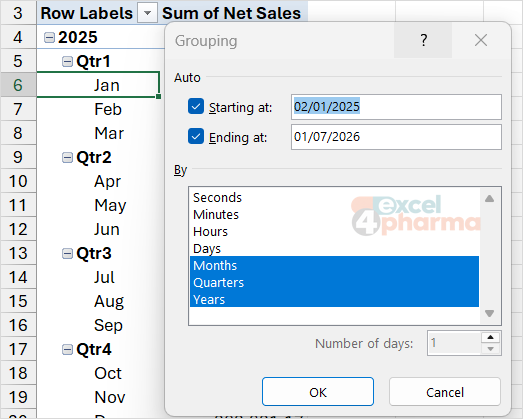
Drop Date in Rows. If Excel has grouped it, the Field List shows extra fields (Months, Quarters, Years) next to the original. If not, or if you want a different grouping, right-click any date in the report and choose Group. The dialog lists the time units: Seconds, Minutes, Hours, Days, Months, Quarters, Years. Select several with a click each; they are applied as levels, with the largest unit as the outermost.
With Months and Years selected, the report shows each year with its months below. Selecting Months alone merges the same month of different years into one row, which is correct for seasonality and wrong for a time series. When the data covers more than one year, always include Years.
Choosing Days activates Number of days at the bottom of the dialog. With 7, for instance, the groups are weeks that start on the date in Starting at. This is the way to obtain weeks: set the start to a Monday and use 7 days. There is no separate week unit, and the number-of-days option is available only when Days is the only unit selected.
The check in the companion file is the Quarters sheet. The calendar quarters in C3:C8 show what the grouping returns for the six quarters of the data.
Grouping numbers
A numeric field in Rows can be grouped into bands. Right-click a value, choose Group, and fill three boxes: Starting at, Ending at and By. In the companion file the net price is grouped from 0 to 125 in steps of 25. The Bands sheet shows the five bands and what each should contain: 120, 108, 63, 0 and 69 transactions, with units and net sales next to them. The band from 75 to 100 is empty, and the PivotTable still shows it, with no value, because the groups are continuous.
The band limits are defined by the three numbers, not by the data. The first band includes its lower limit and excludes its upper one: a price of exactly 25 falls into the band 25 to 50. This is a frequent source of one-off differences between a report and a hand count. The companion file keeps the band start and width in Parameters (B4 and B5) so that its check formulas follow the same rule.
If the field has values outside the limits, Excel adds two bands, one for values below and one for above. Check the first and last rows of the report before relying on it.
Grouping text by hand
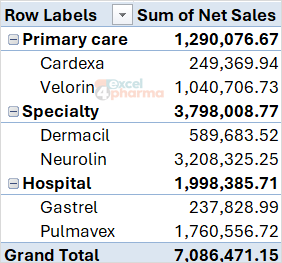
A text field has no natural groups, so you create them. In the report with Product in Rows, click the first product, hold Ctrl and click the others of the same family, then right-click and choose Group. Excel creates a group called Group1 and a new field called Product2 (or similar). Click the group label and type a new name, such as Primary care. Repeat for the other families. The Families sheet lists the three families in the case: Primary care (Velorin, Cardexa), Specialty (Neurolin, Dermacil) and Hospital (Pulmavex, Gastrel), with net sales for each.
After grouping, the original field and the new group field both exist. Drop the original out of Rows to see just the families, or keep both for a two-level view.
To undo a grouping, right-click a group label and choose Ungroup. For a date field, Ungroup removes all the date grouping at once.
The fiscal calendar problem
Grouping by quarters always means calendar quarters: January to March is the first. A company with a fiscal year that starts in April has its first quarter from April to June, and no setting in the Group dialog changes that. The same is true for a fiscal year, which a standard grouping cannot start in April.
The reliable answer is to add helper columns to the source with the fiscal logic, and to keep the fiscal start month as an input. The companion file has two calculated columns in tblSales, driven by the Parameters sheet (fiscal year start month in B2, months per quarter in B3). Fiscal year, here defined as the calendar year in which the fiscal year ends:
=YEAR([@Date])+IF(MONTH([@Date])>=Parameters!$B$2,1,0)
Fiscal quarter:
=INT(MOD(MONTH([@Date])-Parameters!$B$2,12)/Parameters!$B$3)+1
With the start month set to 4, a transaction of May belongs to the first fiscal quarter of the fiscal year ending the following March. Put the two new fields in the PivotTable and you have fiscal reporting. Changing the start month in Parameters changes the whole logic, so the same file serves a company with a different calendar. The Quarters sheet puts calendar quarters (C3:C8) beside the fiscal grid (E2:J6) to show the difference.
Note that naming conventions differ. Some companies call the fiscal year by the calendar year in which it starts. Decide the convention and write it in the header, not only in the formula.
Limits to know
Grouping does not work in every kind of PivotTable. If the report is built on the Data Model, the check box Add this data to the Data Model was ticked when it was created, manual grouping of text items is not available; create a calculated column or a grouping table in the source instead. A date field with blanks or with text cannot be grouped, and Excel says "Cannot group that selection". Clear the offending cells first. And a field already grouped by one method cannot be grouped again by another without an ungroup.
Common mistakes
- Grouping months without years in a multi-year list, which merges the same month of different years.
- Expecting fiscal quarters from the Group dialog.
- Forgetting that the lower limit of a numeric band is included and the upper is excluded.
- Selecting items in the wrong order, or the wrong items, when grouping text; check each group after naming it.
- Leaving blank or text cells in a date column and getting "Cannot group that selection".
- Creating a second PivotTable from the same source and expecting the groups to be there.
Companion file
Illustrative data only. Not a decision tool.For further reading
- Group or ungroup data in a PivotTable - Microsoft Support
- Create a PivotTable to analyze worksheet data - Microsoft Support