
Protecting Cells, Sheets and Workbooks
The problem
A model can take days to build and one minute to ruin. A colleague types a number over a formula, deletes a column that looked empty, or renames a sheet that other sheets rely on. Nobody notices until a result looks wrong, and by then no one remembers what the cell contained.
Excel protects work at three levels. The first is the cell and the sheet: which cells may be changed, and what a user may do on the sheet. The second is the structure of the workbook: whether sheets can be added, moved, renamed, hidden or deleted. The third is the file: who can open it, and who can save changes to it. They do different jobs, and none of them is a security system. Microsoft's own pages say it plainly: sheet protection only stops users from changing locked cells, and it does not protect the file itself.
The examples use the companion file W07_Protection.xlsx. The Pricing model sheet is protected, with four unlocked inputs, locked results and one hidden formula. The Steps sheet summarizes the procedure. A third sheet, Notes, is hidden, and you find it only by taking the protection off. None of the protections in the file has a password, so you can try each one.
Cells are locked by default
Every cell in a new workbook is locked. This has no visible effect, because locking does nothing until the sheet is protected. The logic is therefore the reverse of what one might expect: protection applies to all the cells of the sheet except those that were unlocked beforehand. Two steps follow.
First, unlock the cells that users must be able to change, which in a model are the inputs. Select them, press Ctrl+1 to open Format Cells, go to the Protection tab and clear Locked. In the file these are B3:B6, the list price, the discount rate, the rebate rate and the units, all in yellow.
Second, protect the sheet with Review > Protect Sheet. A dialog asks what users may still do. By default they can select locked and unlocked cells. You can also allow formatting of cells, columns and rows, inserting or deleting rows and columns, inserting hyperlinks, sorting, using AutoFilter and PivotTable reports, editing objects such as charts and shapes, and editing scenarios. The password is optional. In the file, only the width of columns can be changed.
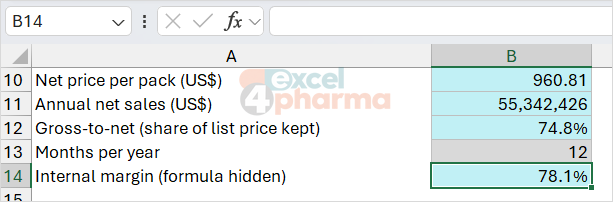
Now try the sheet. Change the list price in B3 and the results follow: the net price in B10 is 960.81 and annual net sales in B11 are 55,342,426. Try to type over B10 and Excel refuses. To change the sheet again, use Review > Unprotect Sheet.
Hiding formulas
On the Protection tab there is a second check box, Hidden. A cell that is locked and hidden shows its result but not its formula: select it and the formula bar stays empty. In the file, B14 holds the internal margin, 78.1%. The formula =(B10-B7)/B10 is not visible, although the other formulas on the sheet are.
If the sheet allows selecting locked cells, as this one does, a user can select everything, copy it and paste it into a new sheet, and the visible formulas become editable there. Only the cells marked as hidden keep their formulas out of sight. For a strict input form, allow the selection of unlocked cells only. The user can then move among the inputs, and nowhere else.

Different ranges for different people
Review > Allow Users to Edit Ranges goes one step further. It defines named ranges on a sheet, each with its own password, which users can unlock even when the sheet is protected. The definition is made before protecting the sheet. A permissions button can assign ranges to particular accounts, but in practice the simpler method is to give a different password for each range and to hand each one to the right people. It suits a template shared among teams, where one group edits the prices and another the volumes.
Hiding sheets, and the workbook structure
Right-click a sheet tab and choose Hide: the sheet disappears from the tab bar. Anyone can bring it back with Unhide, so this protects against distraction, not curiosity. A harder version exists. In the VBA editor (Alt+F11), select the sheet, press F4 to open its properties and set Visible to xlSheetVeryHidden. The Unhide menu no longer lists that sheet, and only the properties window in the VBA editor can restore it. It is still not secure, since anyone with the editor can undo it.
The real barrier is the protection of the structure. Review > Protect Workbook stops users from viewing hidden sheets, and from adding, moving, deleting, hiding or renaming sheets. It does not touch the contents of the cells. The workbook in this exercise has the structure protected, without a password. The Notes sheet is hidden, so try Unhide: the command is disabled until you toggle Protect Workbook off.
Protecting the file
The protections above control what a user can do inside a file that is already open. They have nothing to do with who may open it, which is a separate task. For that there are two routes in Windows. File > Info > Protect Workbook > Encrypt with Password asks for a password to open the file, and the file is encrypted. File > Save As > Tools > General Options sets a password to open and a password to modify, so that people without the second can read the file and not save changes. The same dialog has two further options: Always create backup and Read-only recommended, which only suggests, and which a user can ignore. Under Info, Check for Issues > Inspect Document reports hidden content and personal information before you send the file, and a digital signature can certify its origin.
A password that opens a file is the only protection here that is real, and it has a price. Microsoft cannot recover a lost password, for the sheet, the workbook structure or the file. Store it somewhere safe, and use a long one.
Choosing the level
Think of the question each layer answers. Protecting a sheet answers "what can people change?", and fits any model that others will use. Hiding formulas answers "what do they see?", and is a courtesy, not a vault. Protecting the structure answers "can they rearrange the workbook?". Encrypting the file answers "who gets in?". If a number must never reach the recipient, such as an internal margin in a model sent to a distributor, no setting hides it reliably: take it out of the file you send.
Common mistakes
- Protecting the sheet without unlocking the inputs first. Nobody can type anything.
- Treating a sheet password as security. Tools to remove it are widely available.
- Losing the password. Keep it in a password manager, not in the file.
- Hiding a sheet with confidential data and sending the file.
- Protecting a sheet and then running a macro that writes into it. The macro fails unless it unprotects the sheet first.
- Allowing the selection of locked cells and assuming the formulas are therefore private.
- Protecting the structure with a password and then needing to add a sheet, when the password is in someone else's drawer.
Companion file
Illustrative data only. Not a decision tool.For further reading
- Protect a worksheet - Microsoft Support
- Lock cells to protect them in Excel - Microsoft Support
- Protect a workbook - Microsoft Support