
Dynamic Arrays: Spill, the # Operator and SEQUENCE
The problem
Many tasks need a list, not a single number: the net price of every product after a discount, the twelve months of a forecast, the distinct markets in a sales file. For years the answer was to write a formula in the first cell and copy it down, hoping that nobody added a row, or to enter a special array formula over a pre-selected area. Both approaches break when the data grows.
Dynamic arrays change the model. A formula that returns several values is written once, in one cell, and its results fill the neighboring cells by themselves. When the source grows or shrinks, the result follows. This article explains how that behavior works, how to refer to it from other formulas, how to generate a list of numbers or dates with SEQUENCE, and what to do when Excel answers with #SPILL!. The examples use the companion file F15_Dynamic_Arrays.xlsx.
What changed, and what it replaced
Before dynamic arrays, a formula that returned more than one value had to be an array formula. The procedure was precise: select the output area with the right number of rows and columns, type the formula, and confirm with Ctrl+Shift+Enter. Excel then wrapped the formula in braces. If the area was too small the result was truncated, and if it was too large the extra cells showed #N/A. Inserting a row inside the area was not allowed, and editing the formula meant selecting the whole area again. These are the legacy, or CSE, array formulas. They still work and Excel keeps them for compatibility, but Microsoft recommends dynamic array formulas for new workbooks.
With dynamic arrays you type the formula in the top-left cell and press Enter. Excel calculates the result, decides its size and writes it into as many cells as needed. This behavior is called spilling. Microsoft released dynamic arrays to Microsoft 365 subscribers in September 2018, and the functions that rely on them are available in Excel 2021 and later. Older versions do not have them, so a file that uses them should not be shared with users of those versions without checking.
Anchor cell and spill range
The cell where the formula is typed is the anchor. The cells filled by the result form the spill range. Only the anchor holds a formula; the other cells show values that belong to it. Select any cell of the spill range and Excel shows the formula in the formula bar in gray, as a reminder that it can be edited only in the anchor. When the anchor is selected, a thin blue border surrounds the whole spill range.
The Spill sheet shows it with six products and their list prices in B2:B7. The discount is in J2, so that it can be changed in one place. In D2:
=B2:B7*(1-$J$2)
The formula multiplies a range by a number. In a dynamic-array workbook that is allowed: Excel applies the operation to every element and returns six results, D2:D7. This element-by-element behavior is the core idea. It works for arithmetic, for comparisons and for text:
=D2#>$J$3                          E2: TRUE or FALSE for each net price against the cap in J3
=A2:A7&": "&TEXT(D2#,"#,##0.00")   F2: a label such as "Velorin 20 mg: 37.08"
The ranges involved must have compatible sizes. A range of six rows combined with a range of five does not produce an error everywhere: the extra elements return #N/A.
The # operator
In the formulas above, D2# means the entire spill range that starts in D2, whatever its size is at that moment. The hash sign is the spill range operator. Totals on the same sheet use it:
=SUM(D2#)             returns 226.62, the total net price (B9)
=COUNTIF(E2#,TRUE)    returns 2, the products above the cap (B10)
=MAX(D2#)             returns 71.01, the highest net price (B11)
If a seventh product is added and the first formula is extended to B8, the spill range grows to seven rows and all the formulas that use D2# include the new row without being touched. This removes the commonest error of fixed ranges, the forgotten row. A reference such as D2:D7 does not move when the array grows. D2# does.

The @ operator
Files created in earlier versions can show an @ sign inside a formula, as in =@B2:B7. It stands for implicit intersection: the old behavior in which a formula that could return several values returned only one. Excel adds the @ when it opens such a file to keep the result unchanged. Where you want the full array, remove the @.
SEQUENCE: lists of numbers and dates
SEQUENCE returns a list or a table of consecutive numbers:
=SEQUENCE(rows, [columns], [start], [step])
Any argument you leave out defaults to 1, so =SEQUENCE(5) returns 1 to 5 in a column. On the SEQUENCE sheet the last block asks for three rows, four columns, a start of 1 and a step of 1 with four input cells (I2:I5):
=SEQUENCE($I$2,$I$3,$I$4,$I$5)
The result fills H7:K9 row by row with the numbers 1 to 12.
Alone the function is a counter. Its power appears when it feeds another function. A forecast needs a time horizon, and the dates should not be typed. Three inputs define it: the first month in B2 (01-Jan-27), the number of periods in B3 (12) and the step in months in B4 (1). Then:
=SEQUENCE($B$3)                              A7: the period numbers, 1 to 12
=EDATE($B$2,SEQUENCE($B$3,1,0,$B$4))         B7: the start of each period
=EOMONTH($B$2,SEQUENCE($B$3,1,0,$B$4))       C7: the end of each period
SEQUENCE generates 0, 1, 2 and so on, in steps of the value in B4, and EDATE adds those numbers of months to the start date. The result is 01-Jan-27 to 01-Dec-27, with month ends from 31-Jan-27 to 31-Dec-27. Change the horizon in B3 to 18 and the three lists lengthen by themselves. Change the step to 3 and the periods become quarters. Change the date in B2 and the entire calendar shifts. There is not one typed date in the sheet. A summary block counts the periods with =ROWS(B7#) and finds the last date with =MAX(B7#).
Dates are covered in more detail in the article on date functions: EDATE and EOMONTH move by months and handle month ends, which is why they are used here and not the addition of 30 days.

When the spill is blocked: #SPILL!
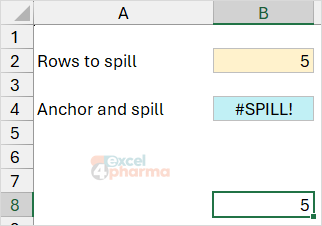
A dynamic array formula needs free space. If any cell in the area it would fill is occupied, the anchor returns #SPILL!. The SPILL error sheet lets you cause it on purpose. B4 holds =SEQUENCE($B$2) with B2 equal to 5, so the result occupies B4:B8. Type any value in B7 and B4 shows #SPILL!. Select the error cell and Excel offers Select Obstructing Cells in the error indicator menu. Clear B7 and the list returns.
The blocked cell is the most frequent cause, but not the only one. Microsoft lists these:
- The area is not blank: data, a note or even a space in a cell on the way.
- The array is inside an Excel table. Spilled formulas are not supported in tables; place them next to the table, or convert the table to a range.
- The area contains merged cells.
- The size is indeterminate. A formula such as
=SEQUENCE(RANDBETWEEN(1,1000))changes its size at every calculation, and Excel gives up. - The result extends beyond the edge of the worksheet. A reference to a whole column, such as
=VLOOKUP(A:A,A:C,2,FALSE), asks for more rows than the grid has. Reference only the cells you need, or use a single-row reference and copy the formula down. - The array is too large for the memory available.
It is not an error in the formula but a constraint of the sheet, and it is avoided at design time. Give the anchor free space below and to the right. Keep formulas that spill in an area of their own, separate from the cells that people type in. If another formula feeds on the spill, point at it with the # operator, and not at the cells.
One more limit to remember: dynamic arrays between workbooks work only while both workbooks are open. If the source is closed, the refreshed formula returns #REF!.
Array logic without Ctrl+Shift+Enter
Array arithmetic gives a compact way to sum with several conditions. A comparison between a range and a value returns an array of TRUE and FALSE, which Excel treats as 1 and 0. Multiplying such arrays has the effect of AND, since a row counts only if every factor is 1. Adding them is OR, since one 1 is enough. The Array logic sheet holds eighteen quarterly net sales figures by market, with thresholds in the parameter block I1:J5: the market UK, a minimum of 20, a maximum of 55 and a second market, DE. To add the sales of the UK that fall between the thresholds:
=SUM($D$2:$D$19*($A$2:$A$19=$J$2)*($D$2:$D$19>=$J$3)*($D$2:$D$19<=$J$4))
It returns 74, from two rows. For UK or DE, the market tests are added inside parentheses:
=SUM($D$2:$D$19*(($A$2:$A$19=$J$2)+($A$2:$A$19=$J$5))*($D$2:$D$19>=$J$3)*($D$2:$D$19<=$J$4))
It returns 180. Below each formula the sheet repeats the calculation with SUMIFS, and the results agree. The array version is not better than SUMIFS here, but it is the same logic that makes FILTER and many modern formulas work. The three building blocks, the market test, the minimum and the maximum, are shown as separate spills in L1:O19, each a column of 1s and 0s, and the last one is their product. Dates in such formulas should come from cells, or be built with DATE, and not typed as text in the formula, because the reading of a typed date depends on regional settings.
In older versions, these formulas had to be confirmed with Ctrl+Shift+Enter. Without it the result could be wrong, or an error, depending on the version and the formula. In Microsoft 365 you press Enter.

Common mistakes
- Copying a dynamic array formula down column after column. One formula is enough; the copies block each other and return #SPILL!.
- Typing in a cell that belongs to the spill range. The value blocks the array and the anchor shows #SPILL!.
- Putting a spilling formula inside an Excel table.
- Using a fixed range such as D2:D7 to read a spill. Use D2# so that the formula follows the size of the array.
- Referencing whole columns in a formula that spills.
- Using ranges of different sizes in an element-by-element operation and reading the #N/A as a data problem.
- Sharing a workbook with dynamic arrays with users of Excel 2019 or earlier.
- Typing dates as text inside a formula. Use cells or DATE.
Companion file
Illustrative data only. Not a decision tool.For further reading
- Dynamic array formulas and spilled array behavior - Microsoft Support
- Dynamic array formulas vs. legacy CSE array formulas - Microsoft Support
- SEQUENCE function - Microsoft Support
- How to correct a #SPILL! error - Microsoft Support