
Keyboard Shortcuts and Navigation
The problem
Most people learn Excel with the mouse and keep using it long after it has become the slowest way to do anything. A price list of a few hundred rows is enough to show the cost: scroll to the bottom, miss the last row, scroll back, drag a selection that overshoots, let go, start again. None of it is difficult. All of it adds up, and every drag is also a chance to select one row too many and paste over something you wanted to keep.
The keyboard is faster, but also more precise. A shortcut does exactly one thing, the same way every time, and it does not depend on how large the window is or how far you have scrolled. That precision matters when the file has thousands of rows and the task is to select all of them.
This article does not list every shortcut. Excel has hundreds, and nobody uses them all. It explains the logic behind the ones that matter, so that the rest can be guessed or looked up, and it shows the places where a shortcut saves real work rather than a second or two.
Throughout, the companion file has a Practice Data sheet with 240 rows in A2:G241, a total in G243, two deliberately empty cells in column D (D60 and D130) and three names. The Drills sheet lists twelve short tasks to try, and the Cheat Sheet sheet collects every shortcut in this article.
Three modifier keys, three jobs
Shortcuts look like a memory test until you notice that the modifier keys behave consistently.
The arrow keys move the active cell by one. Add Ctrl and the arrow no longer moves by one cell: it jumps. Add Shift and the movement extends a selection instead of just moving. Combine both and you jump while selecting. Alt is different: pressed on its own, it displays small letters over the ribbon, the Key Tips, and from there the ribbon can be driven letter by letter.
So the families are simple. Ctrl is "go far" or "do the strong version", Shift is "extend", Alt is "use the ribbon". Once this is clear, Ctrl+Arrow and Ctrl+Shift+Arrow are one idea, not two things to memorize.
Moving around
Ctrl+Arrow moves to the edge of the current data region. Starting in a filled cell, the active cell lands on the last filled cell before a gap; if the next cell is already empty, it lands on the next filled one. This is exactly what makes it useful, and exactly what surprises beginners: with a column that contains gaps, a single press stops at the gap.
In the companion file, click A1 and press Ctrl+Down Arrow. The cursor stops at A241, the last data row, because column A has no gaps. Now click D2 and do the same: Excel stops at D59, just above the empty D60. Press it again and it jumps over the gap and stops at D61, the next filled cell. Pressing it a third time goes to D129, and so on. The rule never changes: it stops wherever filled and empty cells meet.
Ctrl+Home goes back to A1. Ctrl+End goes to the last used cell of the sheet, the lowest used row of the rightmost used column. In the file this is G243, the total. Be aware that "used" includes cells that only carry formatting: a column that was once formatted down to row 5,000 can send Ctrl+End to an empty-looking cell far away. Deleting the unused rows and columns and saving the file resets it.
Ctrl+Page Down and Ctrl+Page Up move to the next and previous sheet, which is the fastest way to flick between the inputs and the output of a model.
Go To, the Name Box and names
F5, or Ctrl+G, opens the Go To dialog. Type a cell address such as G243, a range such as D2:D241, or a name, and press Enter. The Name Box at the left of the formula bar does the same without a dialog: click it, type the address, press Enter.
Names make this much more useful. The companion file defines three names: TotalNetSales (the total in G243), FirstDate (A2) and PriceColumn (F2:F241). Press F5, type TotalNetSales and Enter, and you are on the total, wherever you were. In a real model, a handful of names for the key outputs and the key inputs gives you a table of contents that works from the keyboard. The Navigation sheet also has clickable links to the same targets, built with a short formula:
=HYPERLINK("#TotalNetSales","Go to TotalNetSales")
The # tells Excel that the target is inside the same workbook.

Selecting
Ctrl+Shift+Arrow extends the selection to the last non-blank cell in that direction. Click G2 in Practice Data, press Ctrl+Shift+Down Arrow, and G2:G241 is selected: the whole column of Net Sales, no dragging, no overshoot. With Ctrl+Shift+End the selection extends from the active cell all the way to the last used cell.
Ctrl+A selects the entire worksheet. Pressed inside a block of data, the first press selects the data region and the second press the whole sheet, which is the behaviour you normally want. Ctrl+Space selects the whole column of the active cell and Shift+Space the whole row; the same combinations with a selection already in place extend it to whole columns or rows.
Go To Special
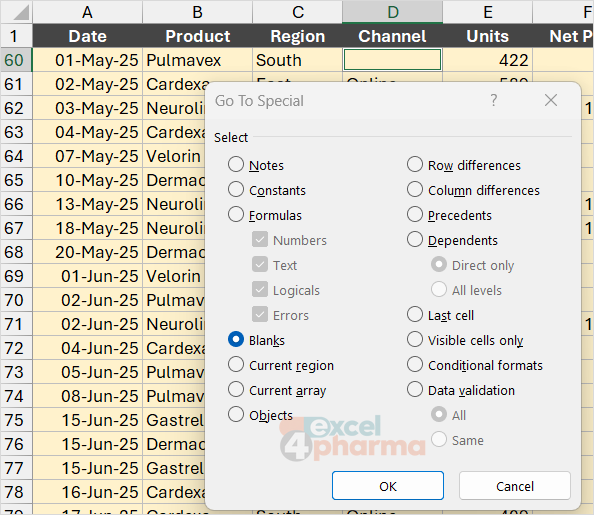
The most underrated selection tool is hidden one click away from Go To. Press F5, then Special, and Excel offers to select cells by type: blanks, constants, formulas, the last cell, visible cells only and several more. Two of them solve problems that otherwise take minutes.
The first is Blanks. Select D2:D241 in the companion file, press F5, choose Special, Blanks, and press OK. Only D60 and D130 stay selected, wherever they are in the column. This is the standard way to find missing values in a long column. It also fills them: with the blanks still selected, type =, press Up Arrow, and finish with Ctrl+Enter. Every selected cell receives a reference to the cell above, so repeated labels that were left blank by a report layout are filled in one step. Ctrl+Enter is the key that makes this work: it enters the same formula in every selected cell, adjusting references as if it had been copied.
The second is Visible cells only, also available as Alt+; (semicolon). When rows are hidden by a filter or by hand, a normal selection includes them, and a command such as Copy can take along more than you wanted. Selecting visible cells only first avoids it.
Entering and editing
F2 puts the cursor inside the active cell, at the end of its content, instead of replacing it. For long formulas it is the difference between fixing a character and retyping everything. In a cell where a formula is being edited, a click on a reference selects it, and F4 then cycles through the four combinations of absolute and relative: A1, $A$1, A$1, $A1. Outside edit mode, F4 repeats the last command, which is a quick way to apply the same formatting to several unconnected cells.
Alt+Enter starts a new line inside a cell. Ctrl+Enter fills a selected range with the current entry, as above. Ctrl+D fills the content and format of the topmost cell of a selection downward, and Ctrl+R does the same to the right.
Ctrl+; enters today's date and Ctrl+Shift+: the current time. Both are values, not formulas: they do not change tomorrow. That is a feature when you want to stamp a date on a record, and a trap if you expected TODAY().
Alt+Down Arrow opens the drop-down list of a cell that has data validation.
Formulas and calculation
Alt+= inserts a SUM formula for the cells above or beside the active cell and proposes the range. It is the fastest way to build a total and one of the few shortcuts that has no ribbon equivalent as short as three keystrokes.
Ctrl+` (the grave accent, usually left of the 1) switches the sheet between displaying values and displaying formulas. It is the quickest audit: one press and the whole sheet shows its logic, a second press and it is back. Ctrl+Shift+U expands or collapses the formula bar when a formula is too long for one line.
For calculation, F9 calculates all open workbooks, Shift+F9 calculates the active sheet only, and Ctrl+Alt+F9 calculates everything regardless of whether Excel thinks it has changed. The last one is useful when a workbook is set to manual calculation, a setting that large models sometimes need, and it is worth knowing before you wonder why a number did not move.
Format and structure
Ctrl+1 opens the Format Cells dialog, the entry point for number formats, alignment and borders. Ctrl+T (or Ctrl+L) turns the current range into a table, and Ctrl+Shift+L switches AutoFilter on and off. Ctrl+9 hides the selected rows and Ctrl+0 the selected columns; to bring them back, Ctrl+Shift+9 and Ctrl+Shift+0, although the second can be intercepted by a Windows keyboard-layout shortcut on some computers. Ctrl+Shift++ opens the Insert dialog and Ctrl+- opens the Delete dialog for the selected cells.
The Alt key and the Quick Access Toolbar
Everything not covered by a dedicated shortcut can still be reached without the mouse. Press and release Alt and Excel shows the Key Tips: a letter on each tab. Press the letter of a tab and its commands show their own letters, and so on. Each sequence, Alt then H then a few more letters, can be typed in about a second once you know it, and the Key Tips remind you if you do not.
A shorter route is the Quick Access Toolbar, the small row of icons above or below the ribbon. Every command on it gets a number as a Key Tip, so Alt+1, Alt+2, and so on run them. Put there the commands you use most and cannot reach any other way: Paste Values and the Format Painter are the usual candidates.

How to learn them
Learning everything at once does not work. The practical way is to pick three shortcuts for the week, say Ctrl+Arrow, Ctrl+Shift+Arrow and F4, and use them every time, even when the mouse would be as fast. After a week, add three more. The Drills sheet in the companion file is built for this: each task names the shortcut to use and where you should land, and the Navigation sheet confirms the numbers: 241 rows in the list, 2 empty Channel cells, a total of 4,135,452.17 in G243.
Common mistakes
- Expecting
Ctrl+Down Arrowto reach the last row. It stops at every gap. If you need the last row regardless of gaps, useCtrl+End, or count the rows with a formula such as=COUNTA(A:A). - Trusting
Ctrl+End. It goes to the last cell that carries anything, including formatting, which can be far beyond your data. - Using
Ctrl+;for a date that should update. It enters a fixed value; use=TODAY()for a date that follows the calendar. - Selecting a range with the mouse in a filtered list and copying it. Use
Alt+;first if you need to be sure that only the visible cells are affected. - Forgetting that shortcuts are tied to the English interface of Excel. Some letters change with the language of the program, and some key combinations change with the keyboard layout.
Companion file
Illustrative data only. Not a decision tool.For further reading
- Keyboard shortcuts in Excel - Microsoft Support
- Select specific cells or ranges in Excel - Microsoft Support